
K-12 phishing guide
Phishing Email Examples: 12 Simulations School Staff Clicked Most
By Shea Darlison, Co-Founder
Phishing emails that school staff frequently click look like normal messages from Google Drive, someone at a neighboring district, the IT team, or services and technology staff use daily. The 12 below are Tartan App simulations that schools sent their staff, and each shows the share of staff who clicked.
Phishing Email Examples by Type
Over the past few months, schools have sent 244,473 phishing simulations through Tartan App. Staff clicked 9.9% of them.
Below we walk through 12 examples of the more effective phishing simulations from our library of over 1,000 scenarios. Each of these examples was generated using Tartan App's simulation generator with mock information.
All 12 have a click rate above 9.9% and four are more than double. Our training guide ranks the 60 simulations schools click most.
Files Someone Shared
File shares are one of the most nefarious phishing attacks because they are trusted platforms that attackers borrow credibility from. These often show up as a colleague or someone from a nearby school district sharing a document or file. It is one of the most frequent phishing attack types we see at Tartan App, which is why it is so critical to train your staff on.
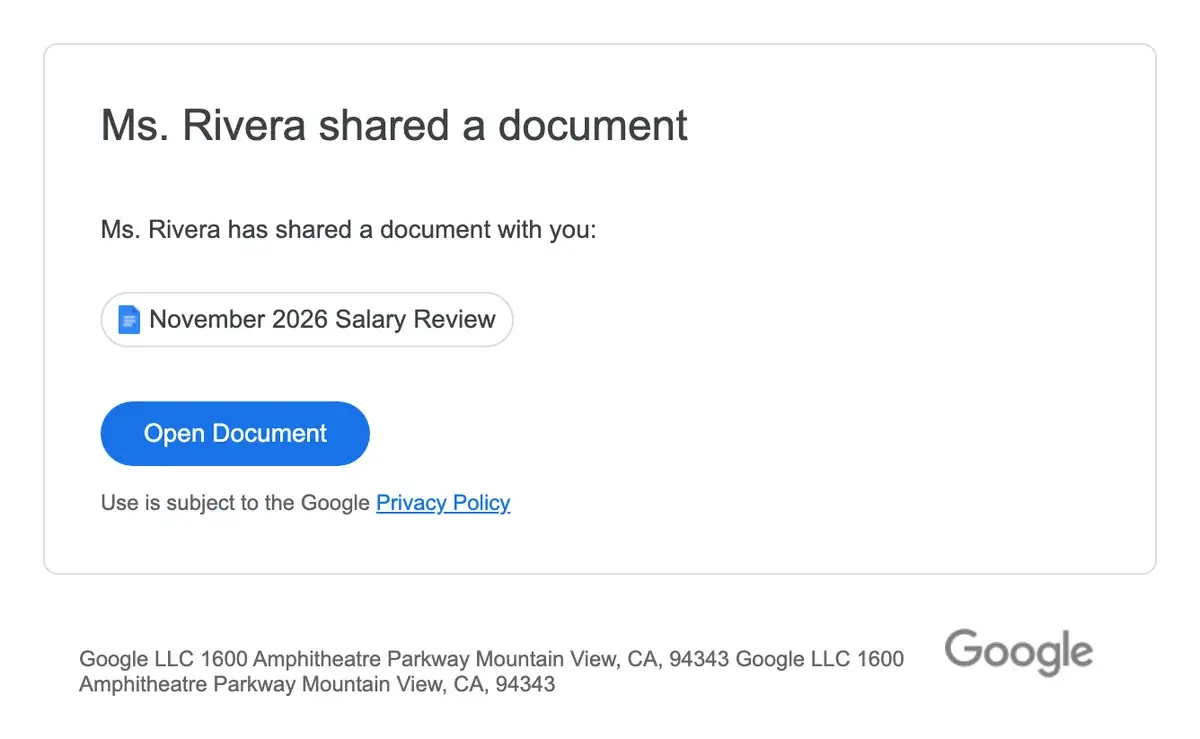
Google Docs: Shared With You
22.0% clicked, of 4,376 sends
From: Google Drive Notifications <[email protected]>
Subject: Document shared with you
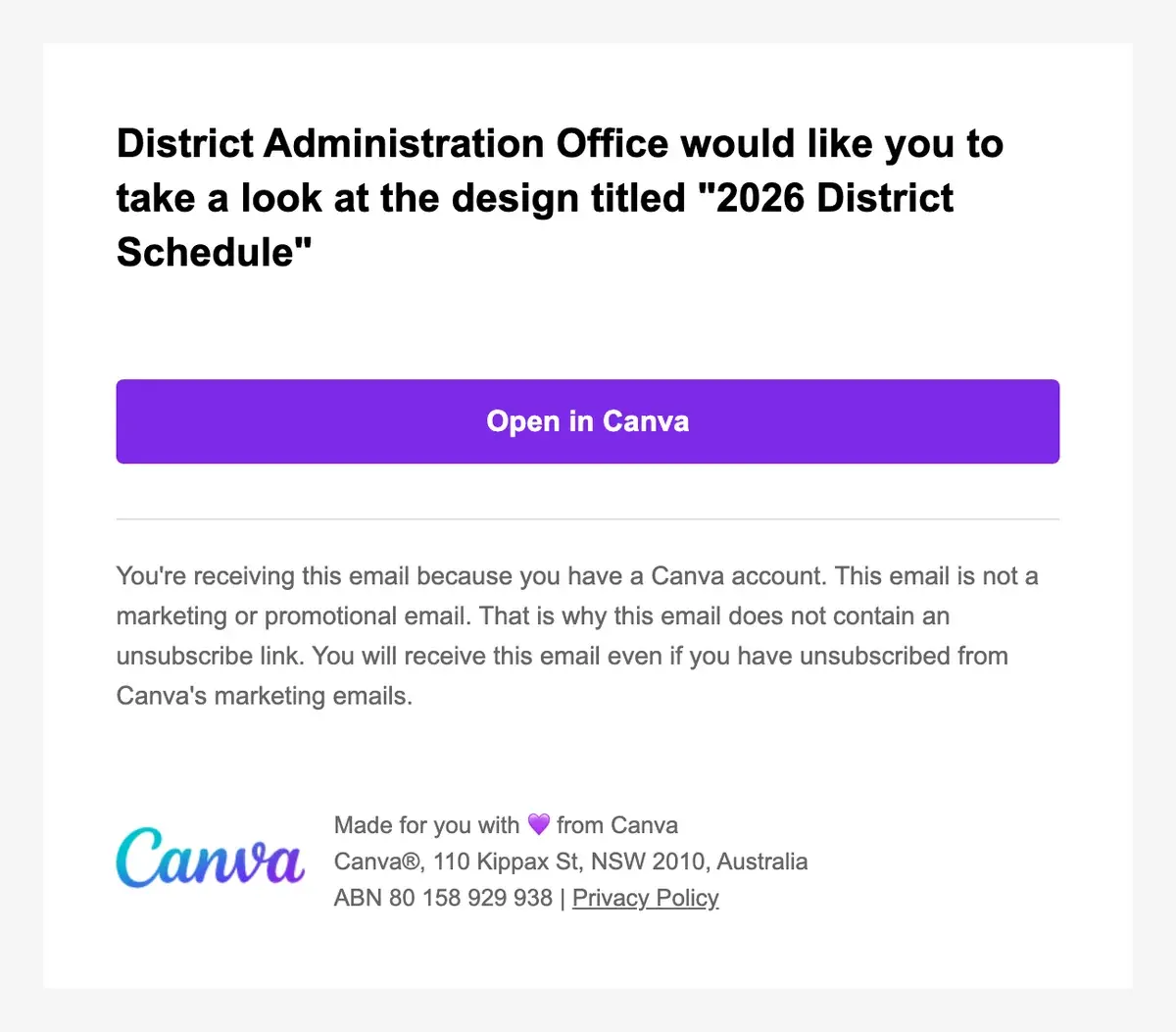
Canva: Shared With You
16.0% clicked, of 5,191 sends
From: District Administration Office <[email protected]>
Subject: District Schedule shared with you
Signatures and Comments
A document needs your signature, or someone left you a comment.
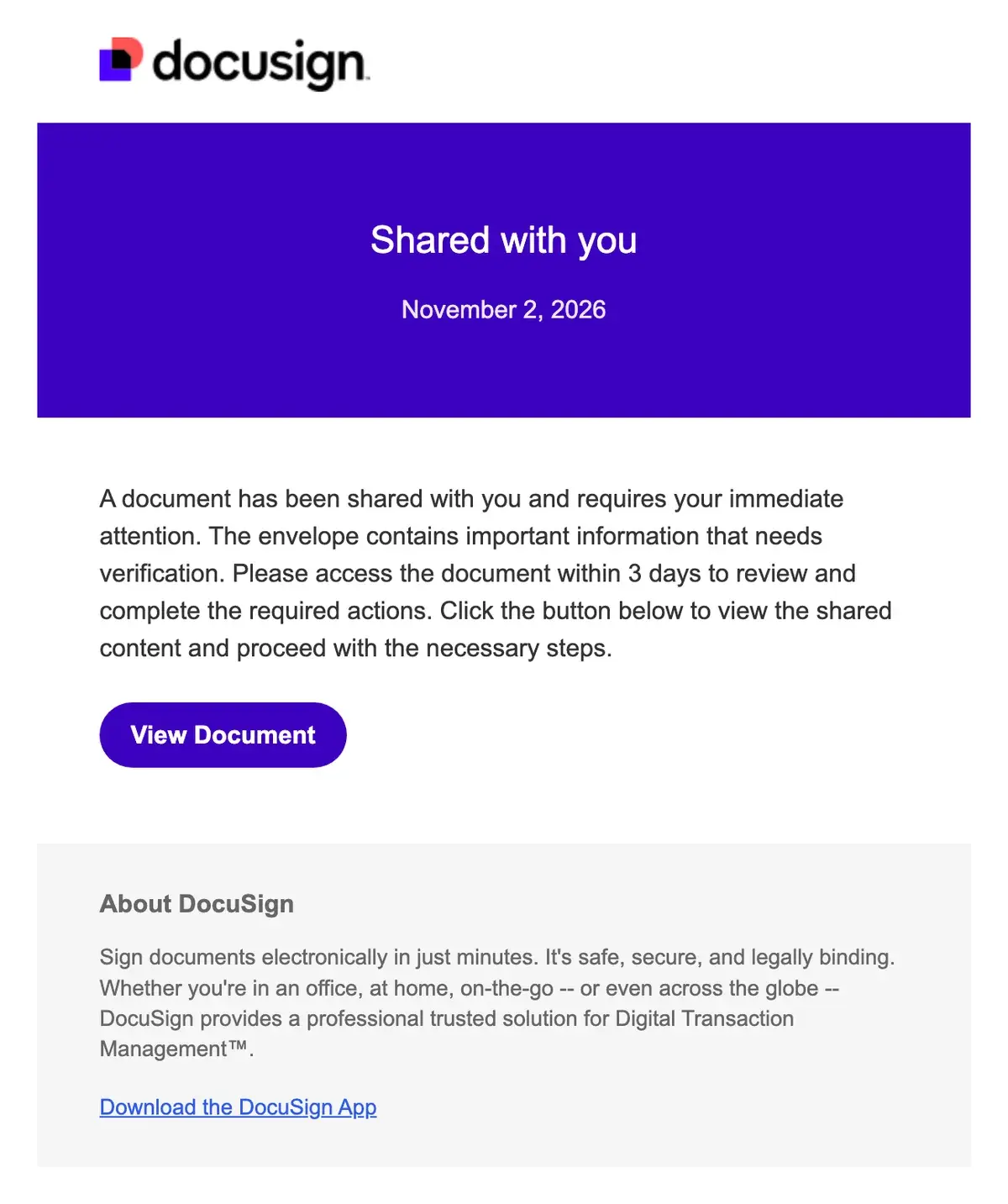
DocuSign: Shared With You
21.5% clicked, of 3,126 sends
From: DocuSign Document Management <[email protected]>
Subject: Document Requires Your Review and Signature
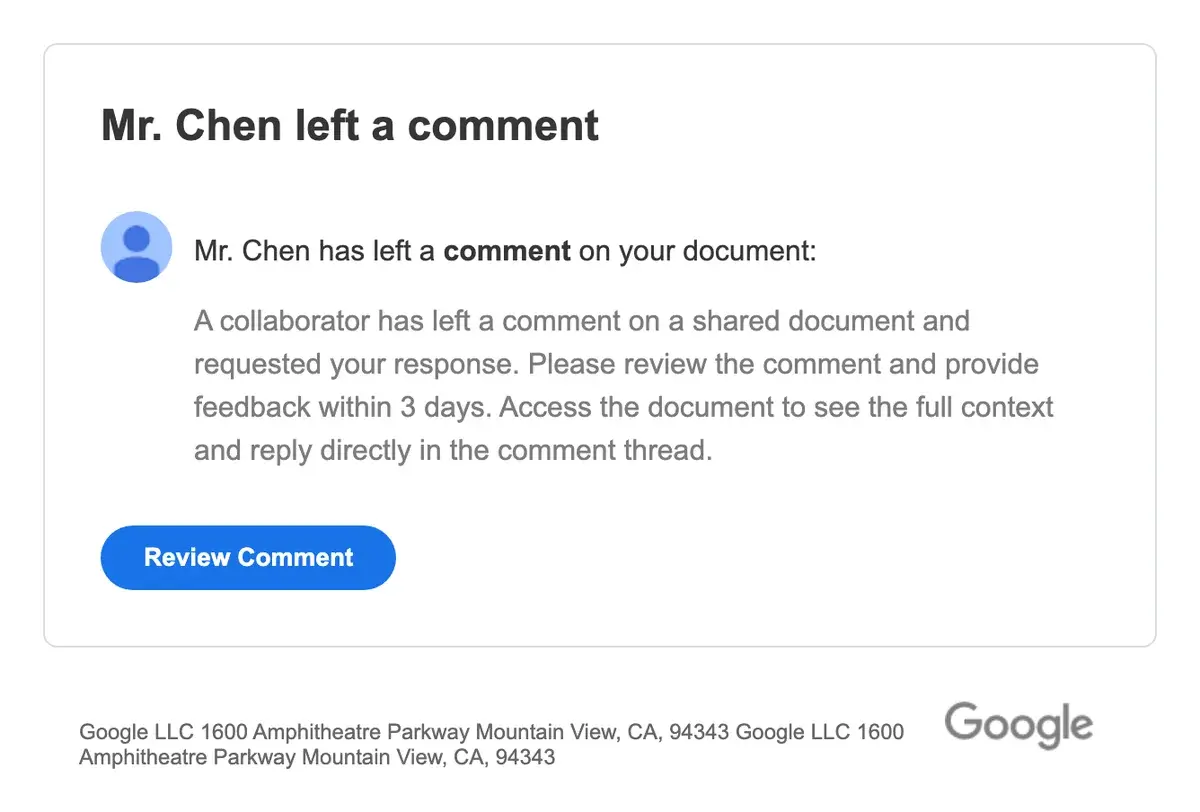
Google Docs: Added a Comment
18.9% clicked, of 4,360 sends
From: Google Docs <[email protected]>
Subject: 2026 Final Grade Verification
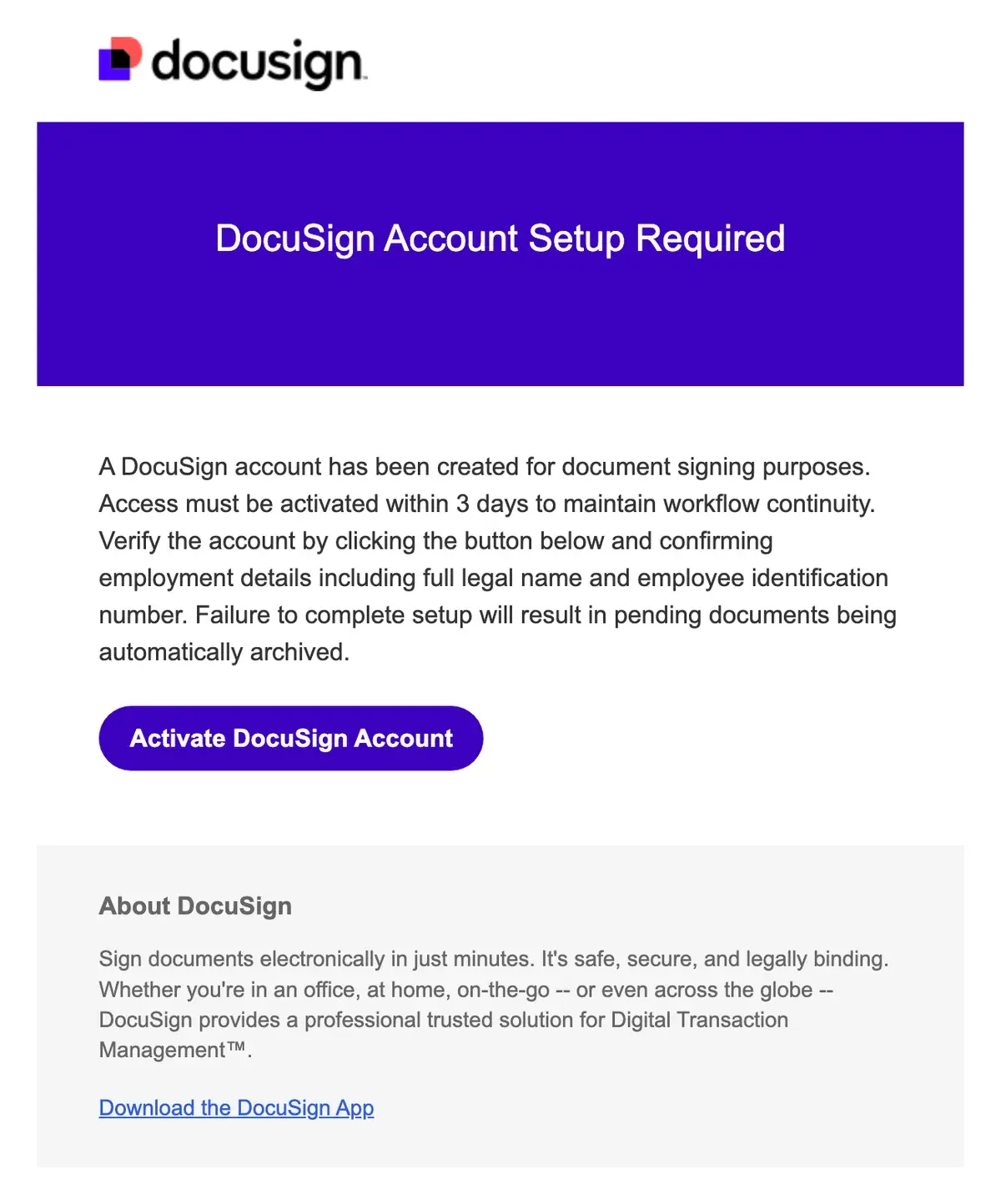
DocuSign: Account Invitation
16.0% clicked, of 4,840 sends
From: DocuSign Account Services <[email protected]>
Subject: DocuSign Account Setup Required
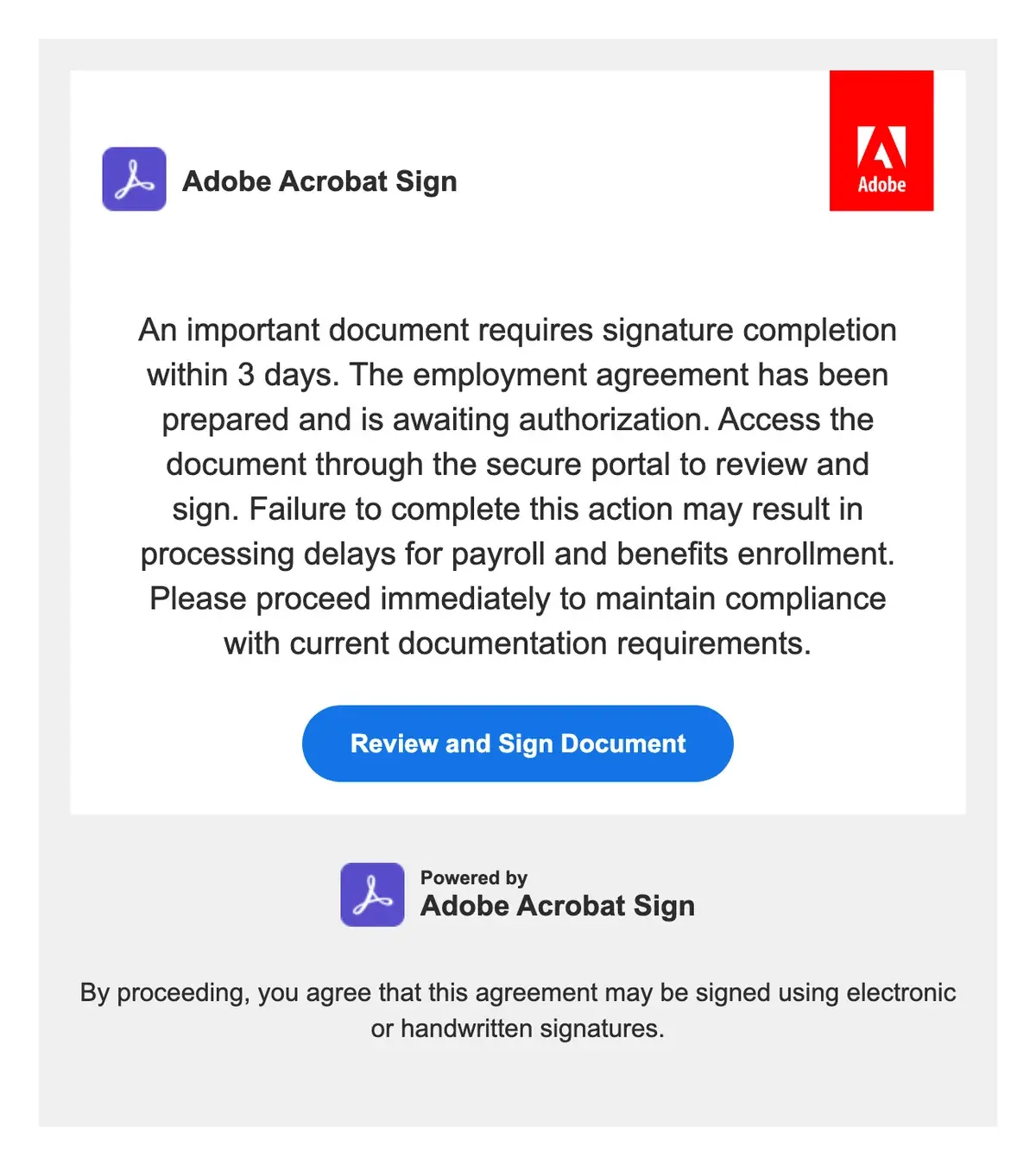
Adobe Acrobat Sign: Shared With You
15.2% clicked, of 2,214 sends
From: Adobe Document Management <[email protected]>
Subject: Document Signature Required - Employee Agreement
Requests From Your Own School
Spoofing is a frequent attack type K-12 schools face. These are often someone creating a Gmail account with the name of someone from the district. These look like messages from a superintendent, principal, the IT team, or a coworker. Some attackers will use school signatures, logos, or other information to increase the realism of phishing attacks. Below are examples of Tartan App’s simulations for this attack type. Schools use these to train staff on how to identify spoofing and potential business email compromise.
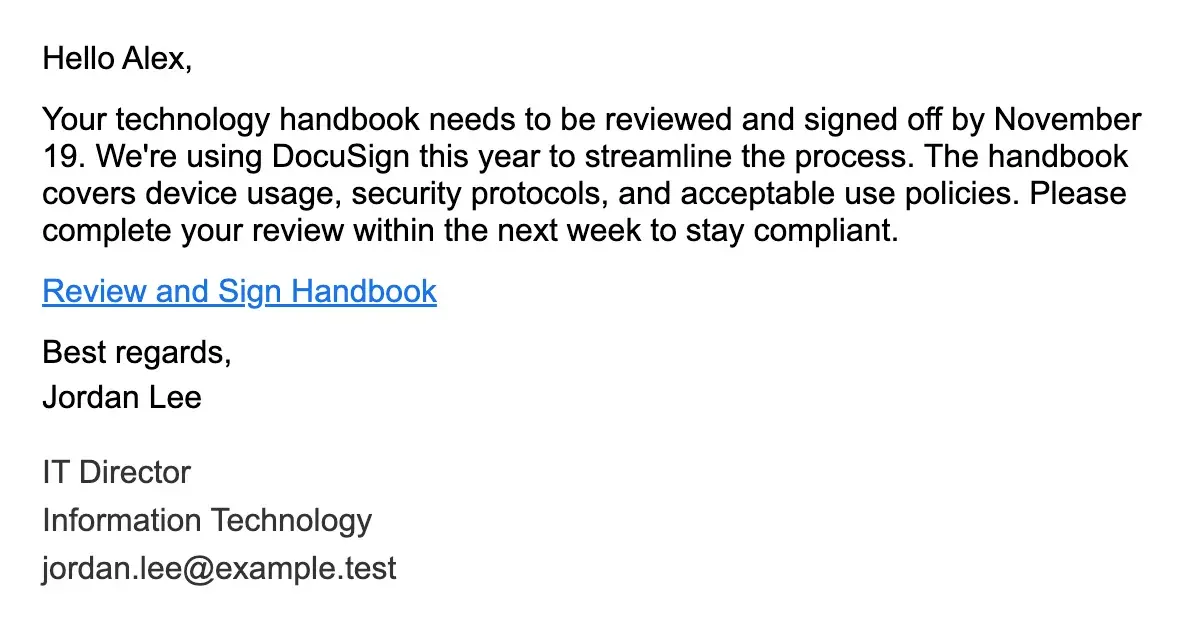
Tech Handbook Review
28.1% clicked, of 791 sends
From: Jordan Lee <[email protected]>
Subject: Annual Technology Handbook Review – Action Needed
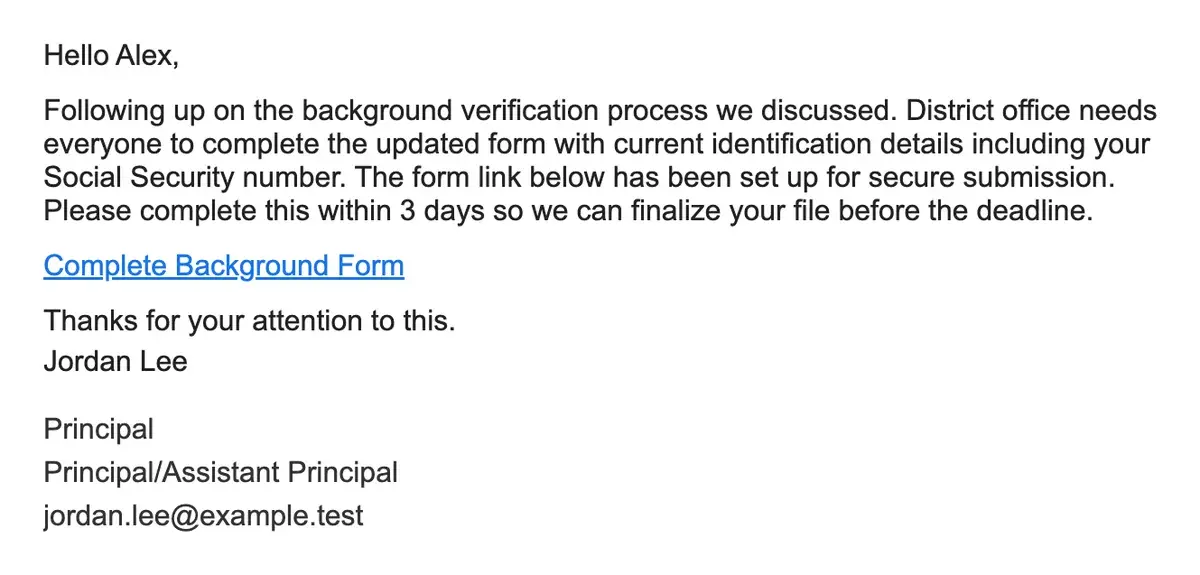
Social Security Number Request
20.2% clicked, of 663 sends
From: Jordan Lee <[email protected]>
Subject: Background Check Form - Need Your Info
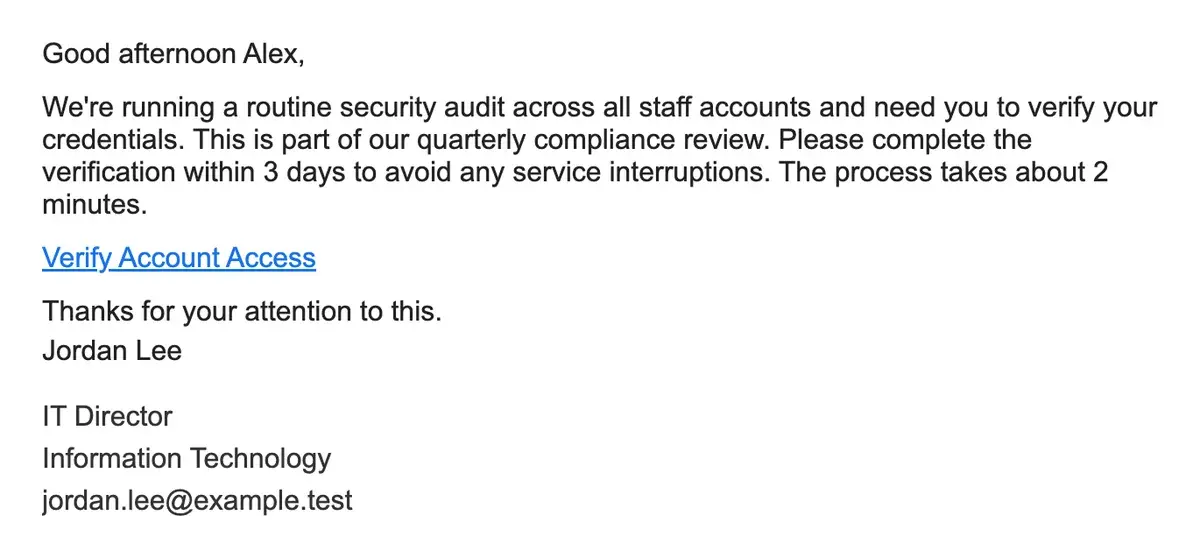
Security Compliance
17.1% clicked, of 805 sends
From: Jordan Lee <[email protected]>
Subject: Account Verification Required - Compliance Check
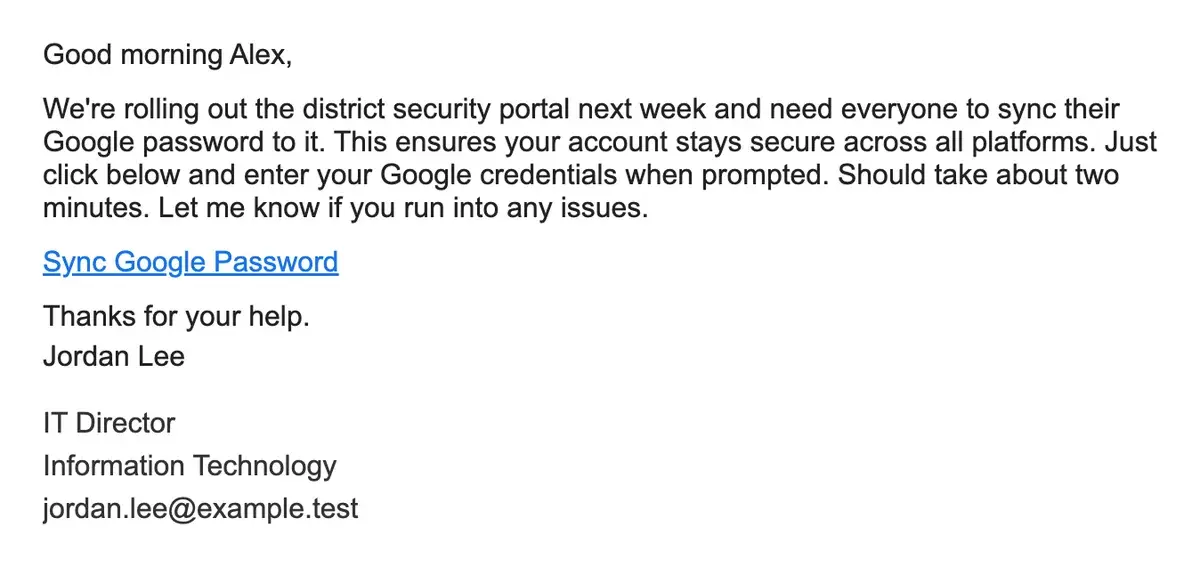
Google Password Sync
15.1% clicked, of 823 sends
From: Jordan Lee <[email protected]>
Subject: Quick sync needed for the new security portal
School Systems and Sign-In Alerts
School software and Google send real notices like these every week.
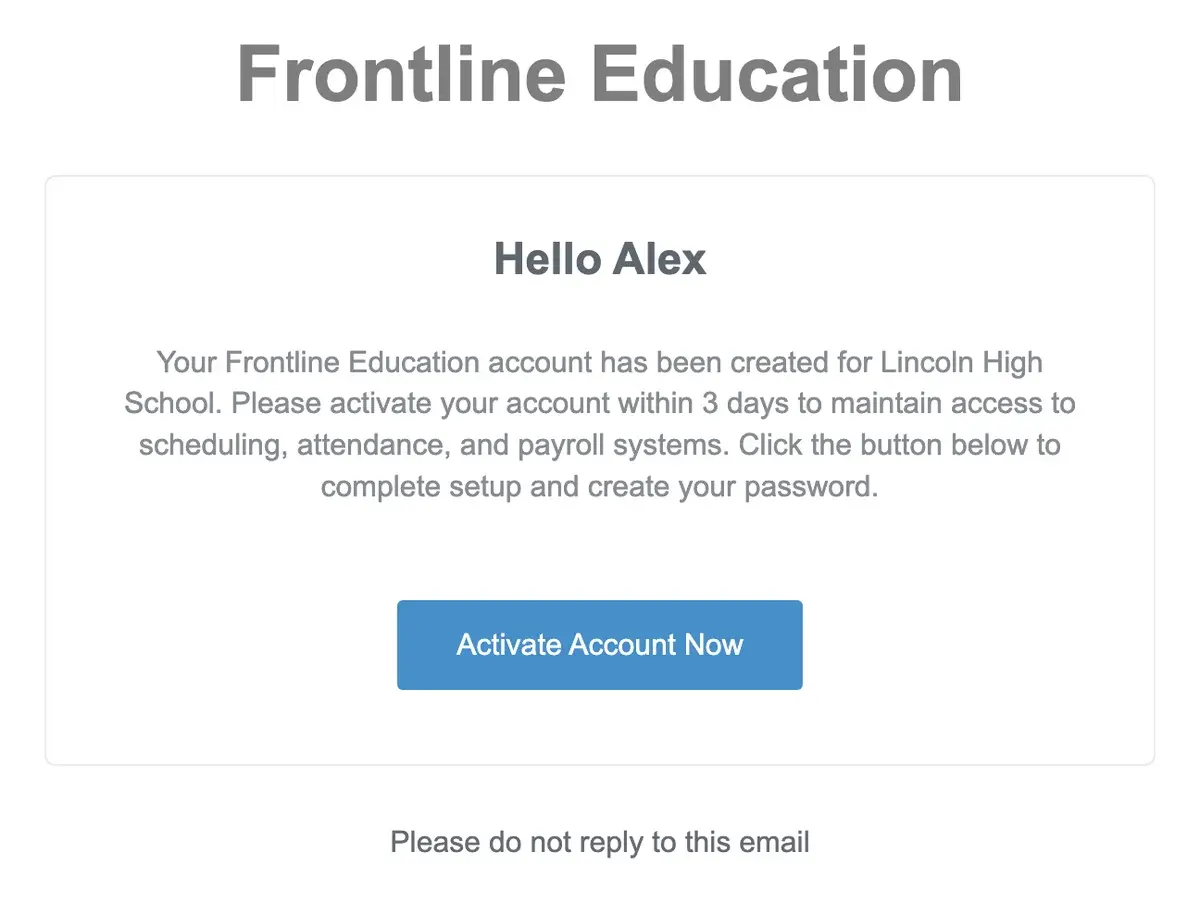
Frontline Education: Account Invitation
17.1% clicked, of 1,692 sends
From: Frontline Education Support <[email protected]>
Subject: Activate Your Frontline Education Account
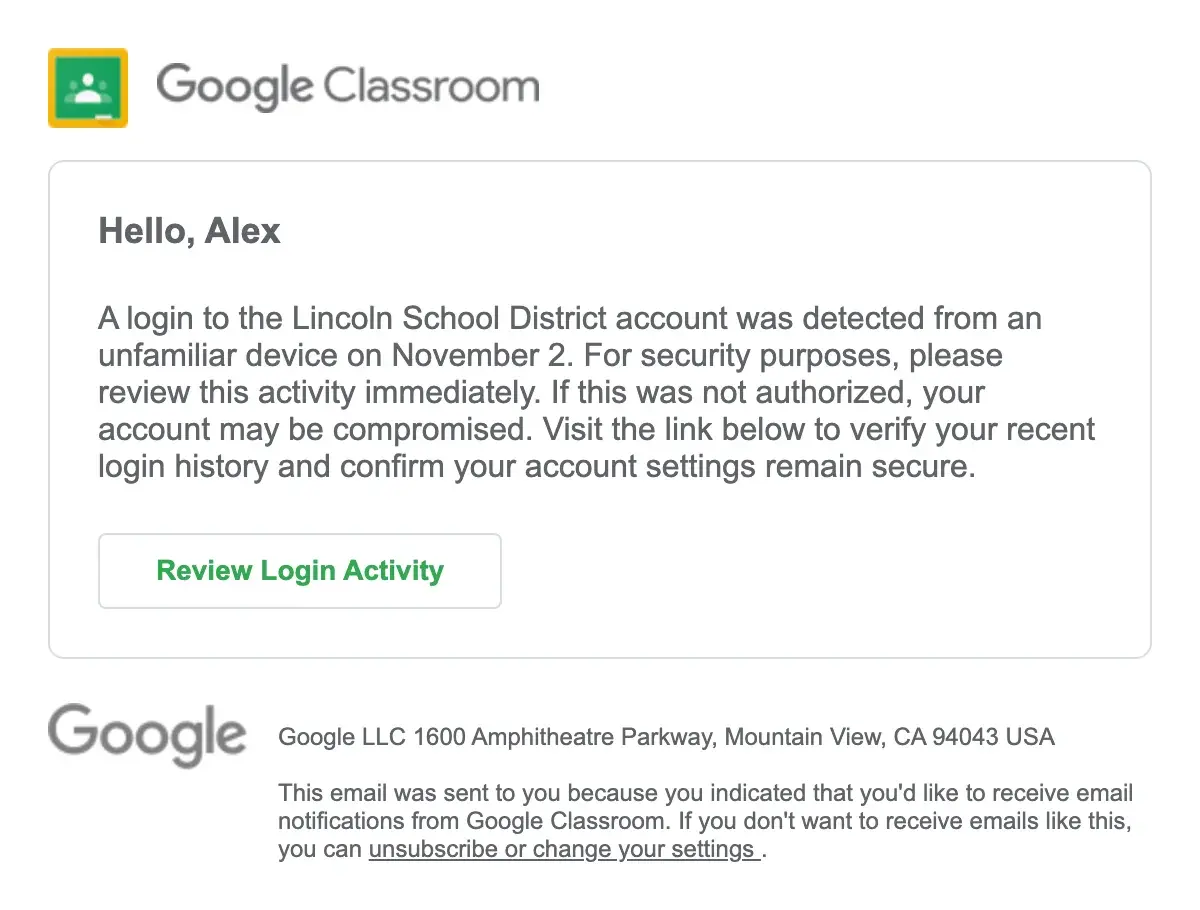
Google Classroom: Unusual Login Location
15.9% clicked, of 1,154 sends
From: Lincoln School District Security Team <[email protected]>
Subject: Security Alert: Unusual Login Activity Detected
How to Tell If an Email Is Phishing
Tartan App's post-click training teaches six clues that expose real phishing emails.
From: Google Drive Notifications <[email protected]>
Subject: Document shared with you
- The address behind the nameIt says Google Drive Notifications, but the address is schoolsecrityalert.com, not google.com.
- Whether you expected itA salary review shared out of the blue is a reason to ask the sender first.
- Where the link really goesHover over Open Document. The link doesn’t go to google.com.
- The sender's full address. A familiar name doesn't prove who sent it. Google says to “check that the email address and the sender name match.” A coworker's name on an outside address is a warning.
- Where the link goes. Hover over a link or button before you click. If the web address that appears isn't the app's real site, close the email. A QR code hides where it leads, so open the app or website yourself instead.
- A deadline or a warning. Emails that threaten your access, money, or account try to rush you. Most of the examples above set a deadline.
- A request for something sensitive. This might be a password, a Social Security number, an account number, or a payment. The FTC says to “contact the company using a phone number or website you know is real.” At school, open your bookmarked app, contact the help desk, or call the office.
- Whether you expected it. Stop if you didn't expect the file, invoice, alert, or request. Ask the sender another way, not by replying.
- Spelling mistakes. Typos still expose some fakes, but don't rely on them. CISA warns that with AI, “some emails will now have perfect grammar and spelling.”
What Staff See After a Click
When someone clicks a Tartan App simulation, the training page shows that exact email. It uses the heading “What gave this email away.” The page numbers two to four clues on the email. Staff review one clue at a time. The page ends with next steps. Don't click links, open attachments, or reply. Report the email instead.
Difficulty adjusts for each person. Everyone starts on the hardest level. After a click, that person's next simulation gets one level easier. Each unclicked simulation makes the next one harder.
What to Do If You Clicked a Phishing Link
- Tell your IT team right away, even if nothing seemed to happen.
- If you typed a password, change it on the real site. Change it on every account that uses the same password.
- Report the email, so IT can warn others and take it out of their inboxes.
Nobody should get in trouble for telling IT fast. Early reports limit the damage. In a Tartan App simulation, a click opens training that takes under 30 seconds. Our simulation guide covers how to run phishing simulations in a school.
How to Report a Phishing Email
- Gmail: open the message. Next to Reply, click More, then Report phishing.
- Outlook: use the built-in Report button.
- With Tartan App Shield: staff click one report button in Gmail or Outlook. The email goes to your IT team in Tartan App Threat Manager. IT can remove it from every inbox. Tartan App tells the reporter if the email was safe.
At Monroe School District, Tartan App moved 26 reported emails to spam in a median of 13 minutes. That time starts at the first staff report. See Tartan App's platform.
Phishing Email Examples FAQ
What happens when staff click a Tartan App phishing simulation?
A training page opens right away and takes under 30 seconds. It shows the clues in the email they clicked. If the school turns on credential entry testing, some simulations open a fake Google or Microsoft sign-in page. Tartan App records that someone tried to sign in, but doesn't keep the username or password they typed.
How often should a school send phishing simulations?
Many schools we work with send each staff member one simulation every 15 days, at a random time in that window, all year. Tartan App lets you set a 7-, 15-, 30-, 60-, or 90-day schedule for each group. Students can get simulations less often than staff.
Should staff use Gmail's Report phishing button or Tartan App Shield?
If your school uses Tartan App, use Tartan App Shield. Gmail's own button sends the report to Google. Tartan App Shield sends it to Tartan App. Tartan App records a reported simulation in that person's training. It sends a real phishing email to your IT team in Threat Manager. Marking a simulation as spam doesn't count as reporting it.
Do phishing simulations look like the apps schools use?
Tartan App's templates match the email layouts of everyday school apps. These include Google Workspace, Microsoft 365, DocuSign, Frontline Education, Skyward, PowerSchool, Infinite Campus, ClassDojo, and SchoolMessenger. Others look like a plain email from a principal, HR, or the IT team.
Send Your Staff Emails Like These
Tartan App sends phishing simulations like the 12 above. It includes under-30-second training after a click and a report button for Gmail and Outlook. Onboarding is free. Most schools finish setup in under 30 minutes.