
Threat Manager
Threat Manager is the central place to review suspicious emails reported through the Tartan App Shield phish report button. It helps IT teams see what was reported, understand the risk, and take action across affected mailboxes.
On this page
Before You Begin
You need:
- A license for Phish Report Button, Threat Manager & Gamification.
- Threat Manager enabled for your Tartan App account.
- The Tartan App Shield phish report button enabled if you want staff reports to flow into Threat Manager.
- Gmail action scopes authorized if you want Tartan to run Move Email to Spam or Permanently Delete Email actions.
- The required Gmail scopes for the actions you plan to use.
- Google Workspace directory sync enabled.
Move to Spam actions require https://www.googleapis.com/auth/gmail.modify. Permanently Delete Email actions require https://mail.google.com/.
Dashboard Overview
The Threat Manager dashboard shows reported emails and their current review state.
Columns include:
- Status: whether the threat is open or closed.
- Risk: the current risk score.
- AI Categorization: the current category when AI summary is enabled and available.
- Subject: the reported email subject.
- Sender Domain: the sender's domain.
- Message ID: the reported message identifier.
- # of Reports: how many users reported the message.
- First Reported By: the first reporter.
- Dates: first and last report dates.
- Last Action: the most recent action taken.
- Action By: who took the most recent action.
Use search and filters to narrow the list, then select View Details to review a specific report.
Review a Reported Threat
The threat details view shows the information admins need before taking action.
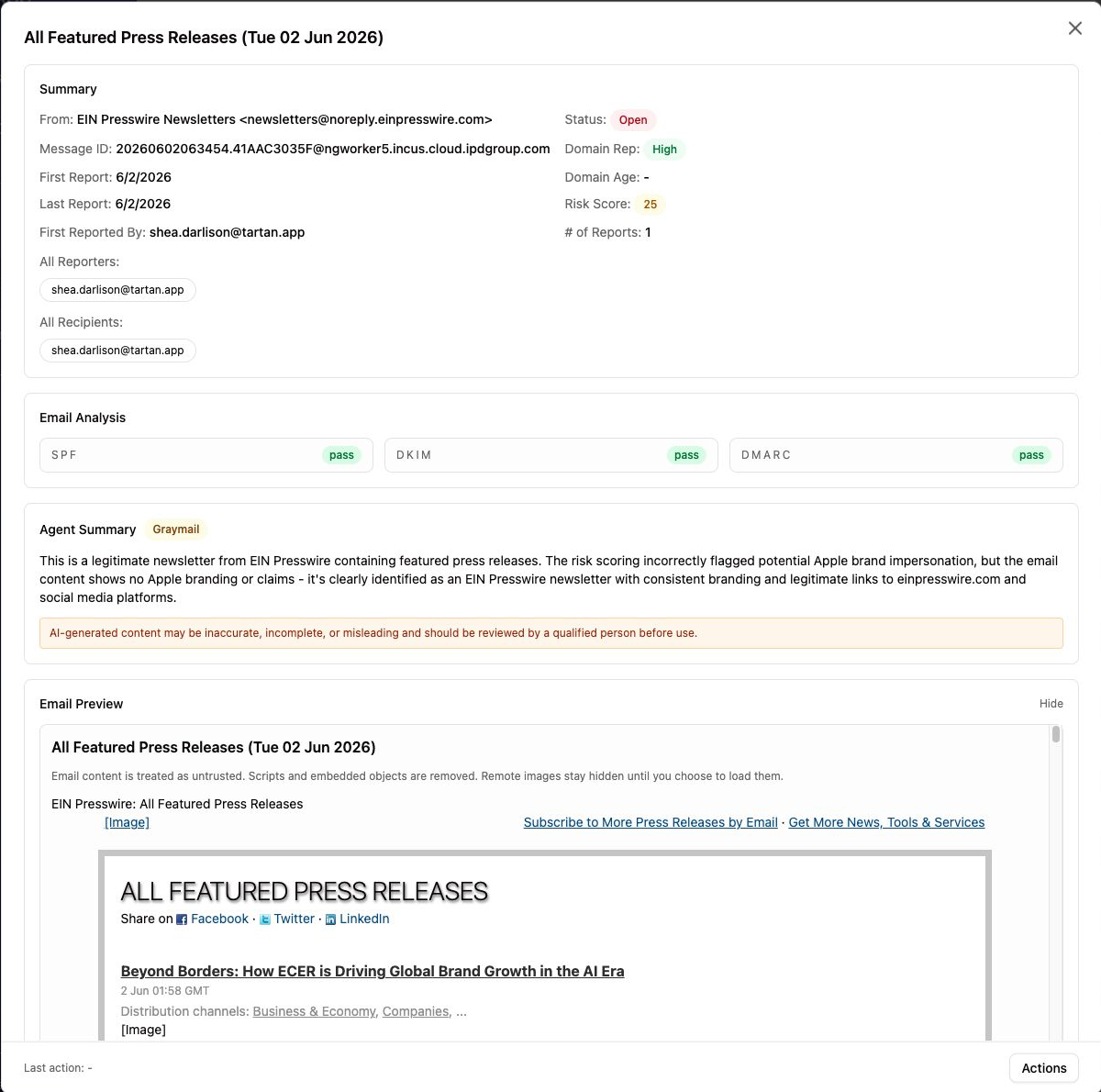
The details view can include:
- Reporter and recipient information.
- Sender, subject, message ID, and report dates.
- Risk score and current status.
- Email authentication checks such as SPF, DKIM, and DMARC.
- Agent summary and categorization when AI summary is enabled.
- Email preview.
- Message headers.
- Last action and available admin actions.
Reported email body content is retained for 7 days. After that period, the email body or preview will no longer be available, but metadata and action history remain available.
AI Summary
When AI email threat summary is enabled, Threat Manager can show an Agent Summary explaining why the report appears safe, suspicious, graymail, spam, or malicious.
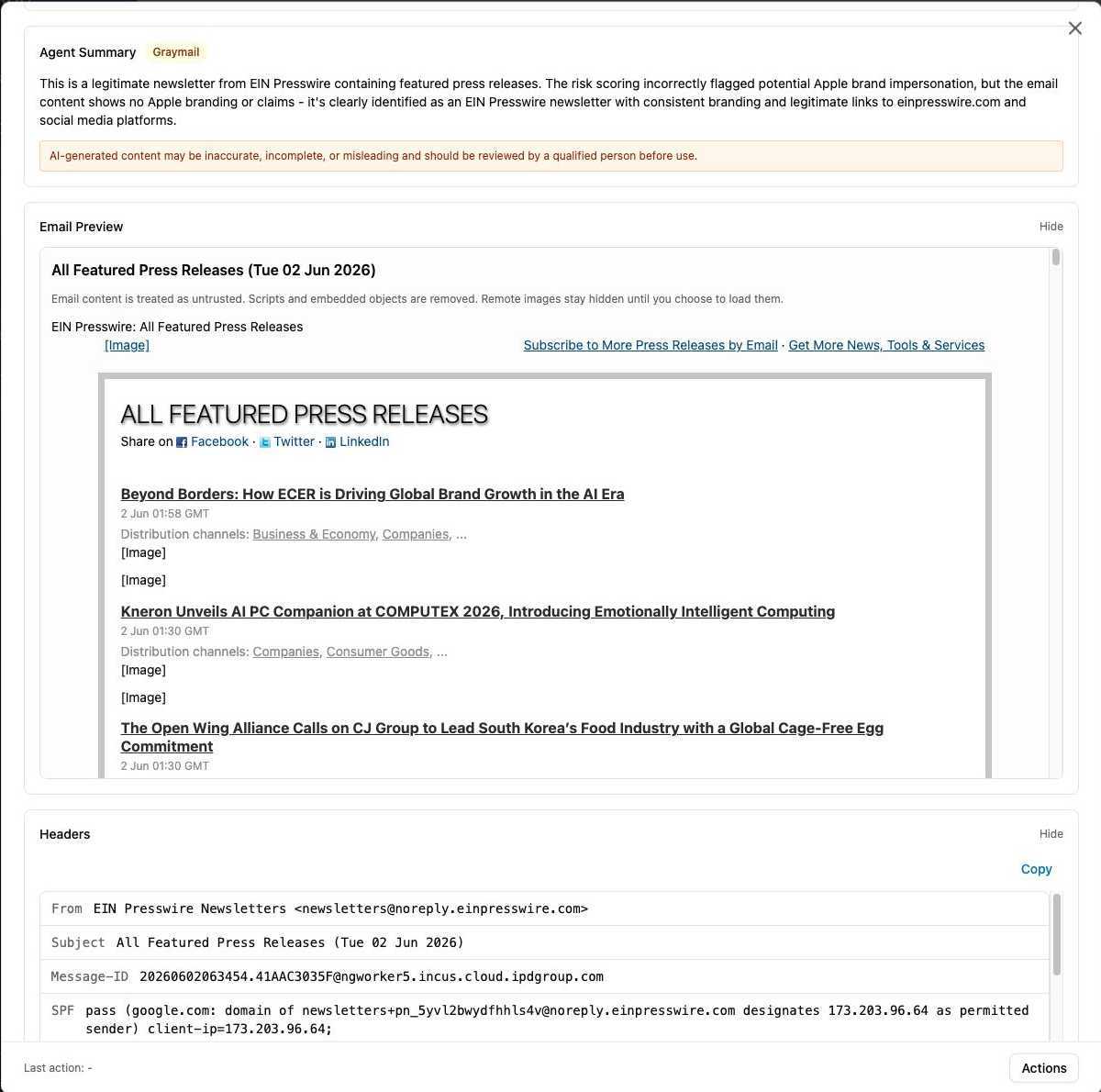
The summary is a review aid, not a final decision. Tartan App shows a warning because AI-generated content may be inaccurate, incomplete, or misleading and should be reviewed by a qualified person before use.
If AI summary is turned off, the Agent Summary is not generated. Threat Manager still logs reports and uses available non-AI signals for the dashboard and actions.
Risk Score and Categorization
The risk score is a 0 to 100 indicator. Higher scores mean the report looks more likely to be dangerous. The score is based on customer-visible signals such as:
- Email authentication results.
- Sender and domain reputation.
- Sender/domain age when available.
- Link, attachment, and QR-code risk signals.
- Spoofing or lookalike indicators.
- Report volume.
- AI classification when AI summary is enabled and available.
Tartan does not recommend treating the score as the only factor. Review the message, summary, sender, authentication checks, and reporter context before taking high-impact action.
Classification Glossary
| Classification | Meaning |
|---|---|
| Malicious | The email has strong signs of phishing, malware, credential theft, or another harmful intent. |
| Spam | The email appears unsolicited or unwanted and is broadly undesirable, but not necessarily a direct security threat. |
| Graymail | Bulk or automated email that may be legitimate, promotional, or subscription-based, but not clearly wanted by every recipient. Newsletters and vendor marketing often fall here. |
| Suspicious | The email has threat-like signals, but the evidence is not conclusive enough to call it malicious. |
| Unknown | Tartan does not have enough reliable evidence to confidently classify the email. |
| Likely Safe | The email appears commonly benign after review of available signals. |
| Error | A key analysis step failed or could not be completed. Review the email manually. |
Take Action
From the threat details view, select Actions to choose what to do.
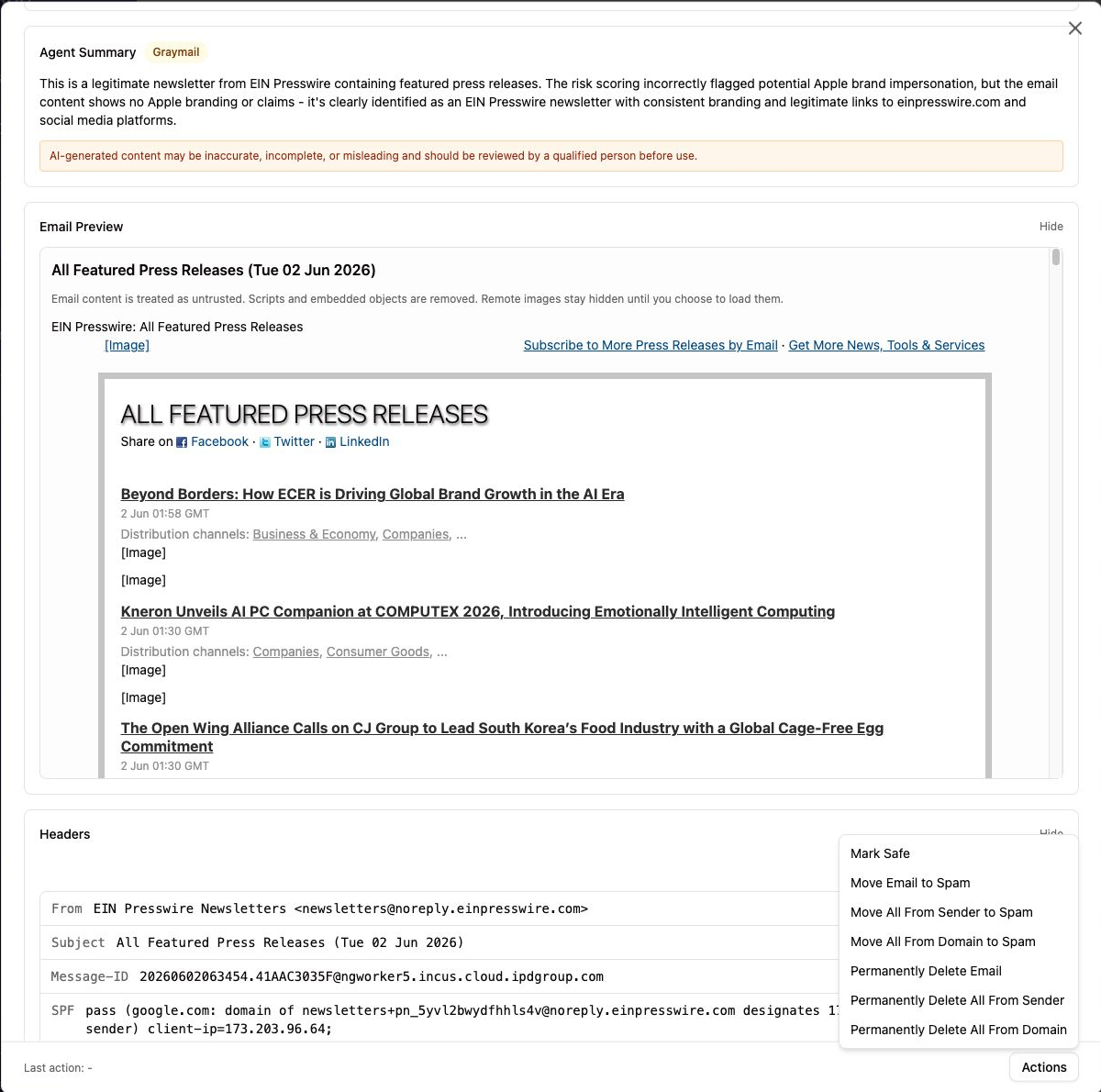
Available actions:
- Mark Safe: closes the report as safe.
- Move Email to Spam: moves the reported email to spam.
- Move All From Sender to Spam: moves matching emails from the same sender to spam.
- Move All From Domain to Spam: moves matching emails from the same sender domain to spam.
- Permanently Delete Email: permanently deletes the reported email.
- Permanently Delete All From Sender: permanently deletes matching emails from the same sender.
- Permanently Delete All From Domain: permanently deletes matching emails from the same sender domain.
Move to Spam actions require the Gmail modify scope. Permanently Delete Email actions require the broader Gmail scope that allows permanent deletion.
All of these actions will be applied to the reported email across your entire workspace.
If one person reported the email, but 100 people received it, if you use Move Email to Spam that change will apply to all 100 people.
This also applies to permanent deletion. If you receive a reported email from an @gmail address and you select to Permanently Delete All From Domain it will delete every Gmail email across your entire Google Workspace.
Permanently Delete Email actions are high impact. Use them only when you are confident the message should be removed. If you want a reversible action, use Move to Spam instead.
Bulk Actions and Action Status
Threat Manager can process actions across affected mailboxes. Each mailbox action is tracked independently, because some messages may already have had Move Email to Spam or Permanently Delete Email applied, may be unavailable, or may be outside the authorized scope.
Action results can include:
- Succeeded: the action completed.
- Failed: the action did not complete and may need retry or investigation.
- Skipped: Tartan did not run the action for that mailbox because it was not applicable, the message was not found, or the message was already handled.
- Pending or processing: the action is still running.
When retry is available, use it for failed action items after you confirm the required scope is present and the mailbox still contains the message.
Threat Agent Automation
Threat Agent automation can move reported emails to spam automatically when your configured criteria are met.
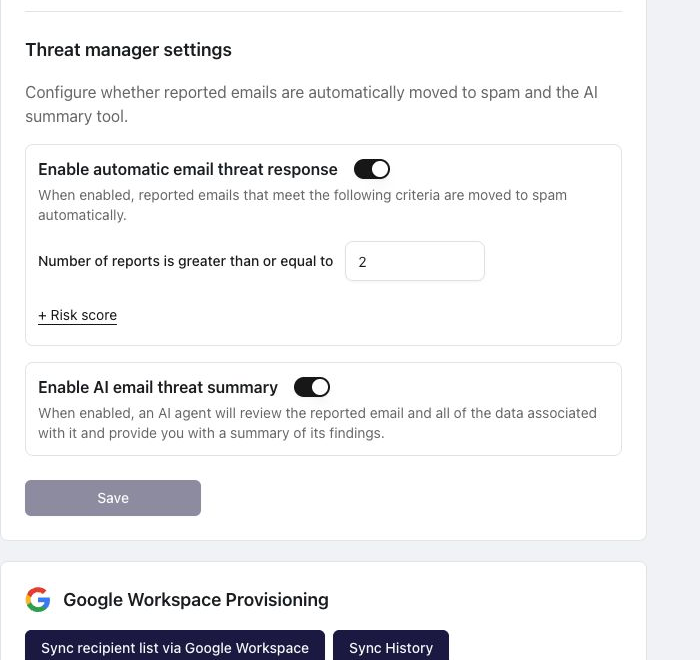
In settings, you can enable automatic email threat response and define criteria such as report count and risk score. When automation is off, reports still appear in Threat Manager, but Tartan does not automatically move the email.
Automatic actions are logged like manual actions.
Notifications
Threat Manager supports two kinds of communication:
- Admin notifications: alerts or summaries for IT/admins when reports or actions meet your rules.
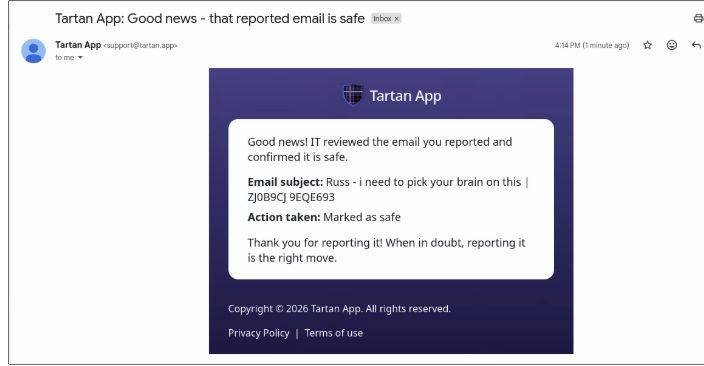
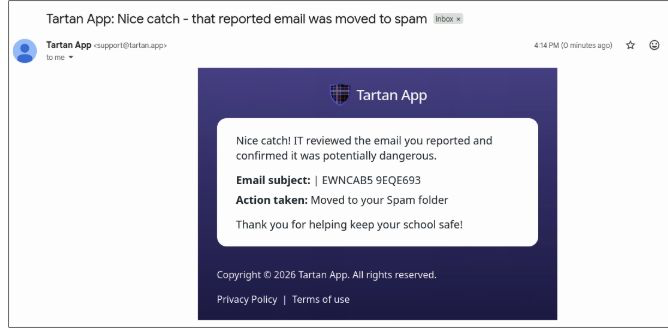
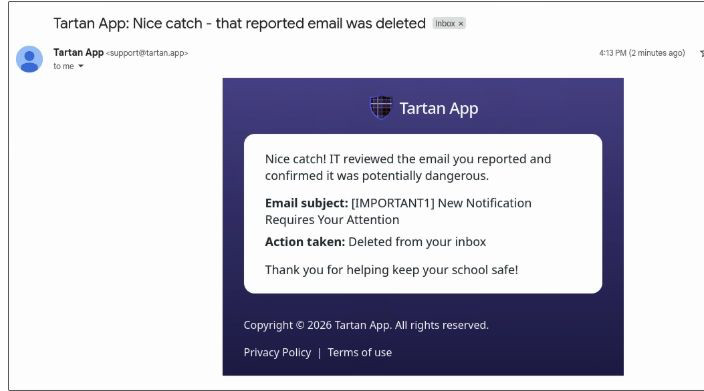
- Reporter follow-up emails: user-facing messages after an email is marked safe, a Move Email to Spam action is completed, or a Permanently Delete Email action is completed.
The immediate confirmation shown in the Tartan App Shield Gmail add-on confirmation is different from the reporter follow-up. Users will see the immediate confirmation when they report a message. They will receive a follow-up later when an admin or Threat Agent action is completed confirming the action that was taken.
Reporter follow-up subjects use the Tartan App prefix, such as:
Tartan App: Good news - that reported email is safeTartan App: Nice catch - that reported email was moved to spamTartan App: Nice catch - that reported email was deleted
If a notification does not send, check the notification settings, action type, and whether the report qualified for follow-up.
Data Retention
Reported email body content is retained for 7 days. After that period, the email body or preview will no longer be available in Threat Manager.
Threat metadata (sender, subject, message ID, risk score, classification, etc) and action history remain available after body content is purged.
Troubleshooting
An Action Is Unavailable
Check the required Gmail scope.
- Moving email to spam requires
https://www.googleapis.com/auth/gmail.modify. - Permanently Delete Email actions require
https://mail.google.com/.
An action may also be unavailable if the email was already handled by automation or a previous admin action.
An Action Failed
Common reasons include missing Gmail scopes, a message that no longer exists in the mailbox, or a mailbox that is outside the authorized Google Workspace scope. Confirm the scope, review the action status, and retry failed action items when retry is available.
An Action Was Skipped
Skipped usually means Tartan did not need to run the action for that mailbox. For example, the message may already have had Move Email to Spam or Permanently Delete Email applied, or the message was not found.
AI Summary Is Missing
Confirm Enable AI email threat summary is turned on in settings. If AI summary is disabled, Threat Manager still logs the report, but the Agent Summary is not generated.
The Email Preview Is Missing
If the report is older than 7 days, the email body or preview will no longer be available. Metadata and action history remain available after body content is purged.
The Score or Classification Changed
Threat Manager may update a report as more information becomes available, such as new report volume or refreshed analysis signals. Use the latest score and classification as part of the review, not as the only factor.
FAQ
What happens when AI summary is off?
Threat Manager still records reports and shows available non-AI signals. The Agent Summary is not generated, and AI-based categorization may be unavailable.
What happens after body retention expires?
The email body or preview will no longer be available. The Threat Manager record, metadata, report count, classification, risk score, and action history remain available.
Can I undo a Permanently Delete Email action?
No. Permanently Delete Email actions are intended for emails you are confident should be removed. Use Move to Spam actions when you want a less destructive option.
Need Help?
If a report is missing, an action fails, or the dashboard does not match your expected notification behavior, contact Tartan support with the message subject, sender, reporter, approximate report time, and the action you expected.
Contact Support