
Tartan App Shield Phish Report Button
The Tartan App Shield phish report button lets staff report suspicious Gmail messages directly to Tartan App. If the message is a Tartan phishing simulation, Tartan records the report. If the message is a real suspicious email, Tartan sends it to Threat Manager for IT review.
On this page
When to Use It
Use the Tartan App Shield phish report button when you want the report to appear in Tartan App. Google's native report phishing button is separate and does not automatically create a Threat Manager record.
The add-on reads only the selected Gmail message while the user is reporting it. It does not read every email in the user's mailbox.
Before You Begin
You need:
- A license for Phish Report Button, Threat Manager & Gamification.
- A Tartan App account with the Tartan App Shield phish report button enabled.
- Google Workspace administrator access.
- Permission to install Google Workspace Marketplace apps for the users, groups, or organizational units that should see the button.
- Google Workspace directory sync enabled.
If you do not see the related settings, contact Tartan support.
Install the Google Workspace Add-On
- Open the Tartan App Shield Google Workspace Marketplace listing provided by Tartan support.
- Choose Admin install.
- Select whether the add-on should be available for the whole domain, specific groups, or specific organizational units.
- Review the requested permissions and complete the install.
- Open an email in Gmail and confirm the Tartan App Shield add-on is available.
- After installation, you can find the app in Google Admin Console -> Apps -> Google Workspace Marketplace Apps -> Apps list.
Only users included in the add-on installation can see and use the button. If you install the add-on for one group or organizational unit, users outside that group or organizational unit will not see it.
Add Gmail Scopes for Move to Spam and Permanently Delete Email Actions
If Domain-wide Delegation has already been configured for Direct Message Injection (DMI), update the existing authorization with the additional Gmail scopes required by the Tartan App Shield phish report button add-on.
If Domain-wide Delegation has not already been configured for Direct Message Injection (DMI), configure it and add the scopes required by the Tartan App Shield phish report button add-on outlined below.
- Open Google Admin Console.
- Navigate to Security, Access and data control, API controls, then Domain-wide Delegation.
- Locate the existing Client ID used for DMI (
106081703606845154759) and click Edit. - Add the following OAuth scopes:
https://www.googleapis.com/auth/gmail.modifyis required for the Move to Spam action.https://mail.google.com/is required for the Permanently Delete Email action.
- Click Authorize to save the changes.
- Allow up to 10 minutes for the new permissions to take effect.
Required Google Scopes
The add-on and Threat Manager actions use different Google permissions. The add-on needs permission to read the selected Gmail message while the user is reporting it. Threat Manager mailbox actions need additional Gmail permissions before Tartan can run Move Email to Spam or Permanently Delete Email actions.
Google's public documentation describes the Gmail API scopes at developers.google.com/workspace/gmail/api/auth/scopes and the Workspace add-on current-message scope at developers.google.com/workspace/add-ons/concepts/workspace-scopes.
| Permission | Where it is used | What it allows | What happens if it is excluded |
|---|---|---|---|
https://www.googleapis.com/auth/gmail.addons.current.message.readonly | Tartan App Shield phish report button add-on | Lets the add-on read the Gmail message the user is viewing while the add-on is running. | Users may see the add-on, but the button cannot submit a useful report for the selected message. |
https://www.googleapis.com/auth/gmail.insert | Google Workspace DMI delivery | Existing DMI baseline scope used to add emails into Gmail mailboxes for DMI delivery. | This does not control the report button. If excluded, Google Workspace DMI campaign delivery can be affected. |
https://www.googleapis.com/auth/gmail.modify | Threat Manager actions | Lets Tartan run Move Email to Spam and related non-delete mailbox actions. | Reports can still be logged, but Move Email to Spam, sender/domain Move to Spam actions, and automatic Move to Spam actions cannot run. |
https://mail.google.com/ | Threat Manager Permanently Delete Email actions | Lets Tartan run Permanently Delete Email actions when an admin chooses them. | Permanently Delete Email actions cannot run. Non-delete actions remain available when their required scopes are present. |
If you remove a scope, Tartan App will use the permissions that remain. For example, you can still collect reports without permanent delete permission, but admins cannot run Permanently Delete Email actions from Threat Manager.
Least-privilege setup: admins can allow reporting without granting permanent delete permission. Without https://mail.google.com/, reporting and eligible Move to Spam actions can still work, but Permanently Delete Email actions cannot run.
Report an Email From Gmail
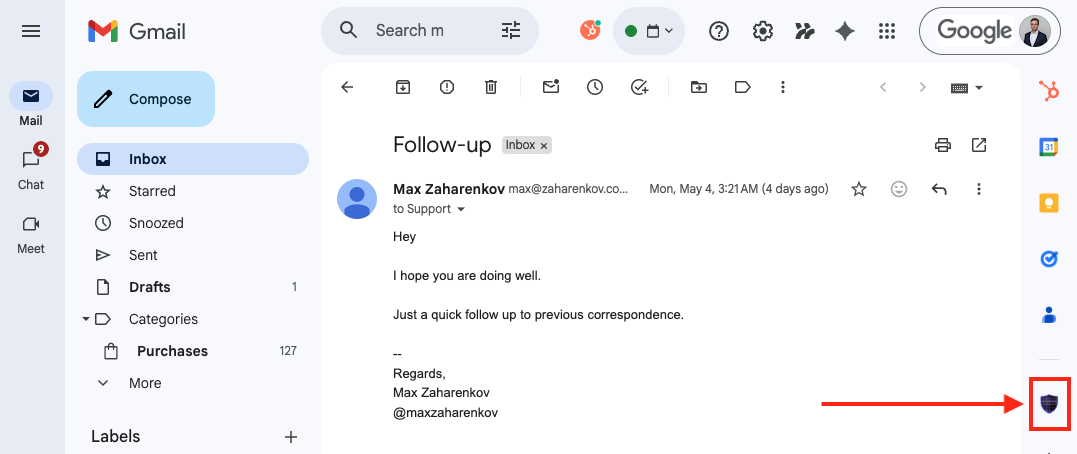
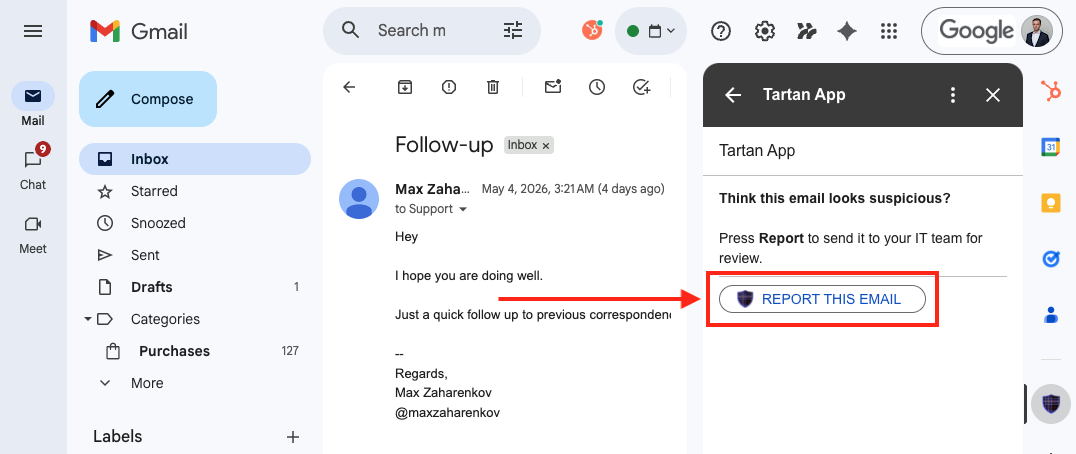
Open a suspicious message, select the Tartan App Shield icon in the Gmail side panel, and choose Report This Email.
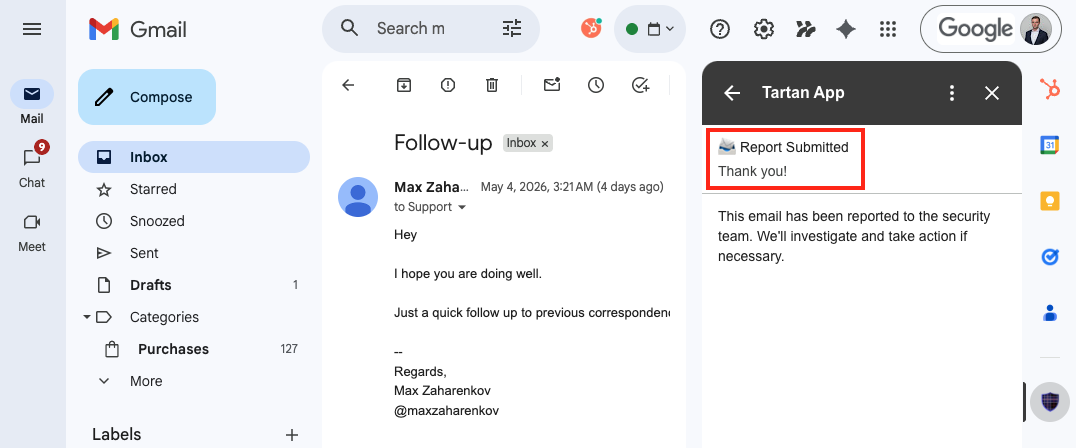
After the report is submitted, Gmail shows a confirmation in the Tartan App Shield add-on.
What Happens When a User Reports a Tartan Simulation
- Tartan App recognizes the simulation.
- The user sees a confirmation message.
- The report is recorded in the user's training activity.
Reporting the same simulation more than once does not create extra training activity. A simulation report may also be ignored if the user already clicked the simulation or was not assigned the simulation.
Tartan simulations do not create Threat Manager records.
What Happens When a User Reports a Real Suspicious Email
- The user sees a confirmation message in Gmail.
- The email moves to the user's spam folder.
- Tartan App creates or updates a Threat Manager record.
- Reports for the same message are grouped together.
- Threat Manager shows the number of reports, reporters, sender information, risk score, categorization, and action history.
Tartan groups reports by the reported message ID. One reported message creates one Threat Manager record, even if multiple users report it.
What IT Receives
Depending on your settings, IT admins can receive notifications when real suspicious emails are reported or when action is taken. Threat Manager also keeps the report in the dashboard so admins can review it even if an email notification is missed.
Reporter follow-up emails are separate from the immediate Gmail confirmation. A user receives the immediate confirmation after reporting. A follow-up email will be sent when an admin or the Threat Agent marks the email safe, runs a Move Email to Spam action, or runs a Permanently Delete Email action. Automatically handled emails follow the same configured notification behavior.
Troubleshooting
The Button Does Not Appear in Gmail
Confirm the user is included in the Google Workspace add-on installation. If the add-on was installed for a group or organizational unit, users outside that group or organizational unit will not see it.
Ask the user to refresh Gmail, check that they are signed into the expected Google account, and wait a few minutes after installation.
A Report Fails or Does Not Include Message Details
Confirm the add-on has the current-message read permission:
https://www.googleapis.com/auth/gmail.addons.current.message.readonlyWithout that permission, the add-on cannot read the selected Gmail message while it is running.
Threat Manager Actions Are Unavailable
Check your Gmail action scopes.
- Move to Spam actions require
https://www.googleapis.com/auth/gmail.modify. - Permanently Delete Email actions require
https://mail.google.com/.
Reports can still be logged when action scopes are missing, but the missing actions cannot run. See Threat Manager troubleshooting for action-specific checks.
IT Did Not Receive a Notification
Check Threat Manager notification settings and make sure the notification address, frequency, and thresholds match your expected workflow. The report should still appear in Threat Manager even if an email notification is not sent.
FAQ
How is this different from Google's native report phishing button?
Google's native report button sends the report through Google's workflow. The Tartan App Shield phish report button sends the report to Tartan App so simulations can be recognized and real suspicious emails can be reviewed in Threat Manager. For Tartan workflows, ask staff to use the Tartan App Shield phish report button.
Does reporting an email delete it automatically?
No. Reporting an email moves it into the spam folder for the person who reported it and sends the email to Tartan App as a report in Threat Manager. If Threat Agent automation is enabled and the report meets your configured criteria, Tartan can automatically run a Move Email to Spam action. Manual Permanently Delete Email actions only run when an admin chooses them and the required scopes are present.
Does Tartan read every email in a user's mailbox?
No. The add-on reads the selected Gmail message when the user reports it. Threat Manager action scopes are used only for the admin actions you enable, such as Move Email to Spam, Move All From Sender to Spam, Move All From Domain to Spam, Permanently Delete Email, Permanently Delete All From Sender, or Permanently Delete All From Domain.
What if we only install the button for some staff?
Only those users can report from Gmail using the Tartan App Shield phish report button. Reports from users outside the installation scope will not be submitted through Tartan unless they are later included in the add-on installation.
Need Help?
If the button does not appear, reports are not reaching Threat Manager, or an action is unavailable after you update scopes, contact Tartan support and include the affected user's email address, the approximate report time, and the action you expected to run.
Contact Support