
Microsoft 365 Direct Message Injection (DMI) Setup Guide
Learn how to deliver Tartan phishing simulation emails directly into recipients' Microsoft 365 mailboxes.
Overview
Microsoft 365 Direct Message Injection (DMI) lets Tartan deliver phishing simulation emails directly into recipients' Microsoft 365 mailboxes. This bypasses external mail routing and delivers simulations more consistently than traditional allowlisting or mail-flow rules.
Use this guide when your organization uses Microsoft 365 for email and wants Tartan simulation messages delivered through the Microsoft tenant.
Prerequisites
Before you begin, make sure you have:
- Tartan administrator access
- A Microsoft 365 Global Administrator, or an administrator authorized to grant tenant-wide Microsoft consent
- Microsoft 365 Provisioning connected in Tartan
- An admin mailbox in the Microsoft 365 tenant, such as
[email protected] - Recipients in Tartan whose email addresses belong to verified domains in the connected Microsoft 365 tenant
- Active, licensed Microsoft 365 users for the recipients receiving DMI messages
Only one DMI provider is active at a time. If Google Workspace DMI is enabled, switching to Microsoft 365 DMI disables Google Workspace DMI for the account.
Step 1: Connect Tartan to Microsoft 365
Microsoft 365 DMI depends on the Microsoft tenant connection used for Microsoft 365 Provisioning. If Microsoft 365 is not connected yet, connect it first from the Recipients page or Account Settings.
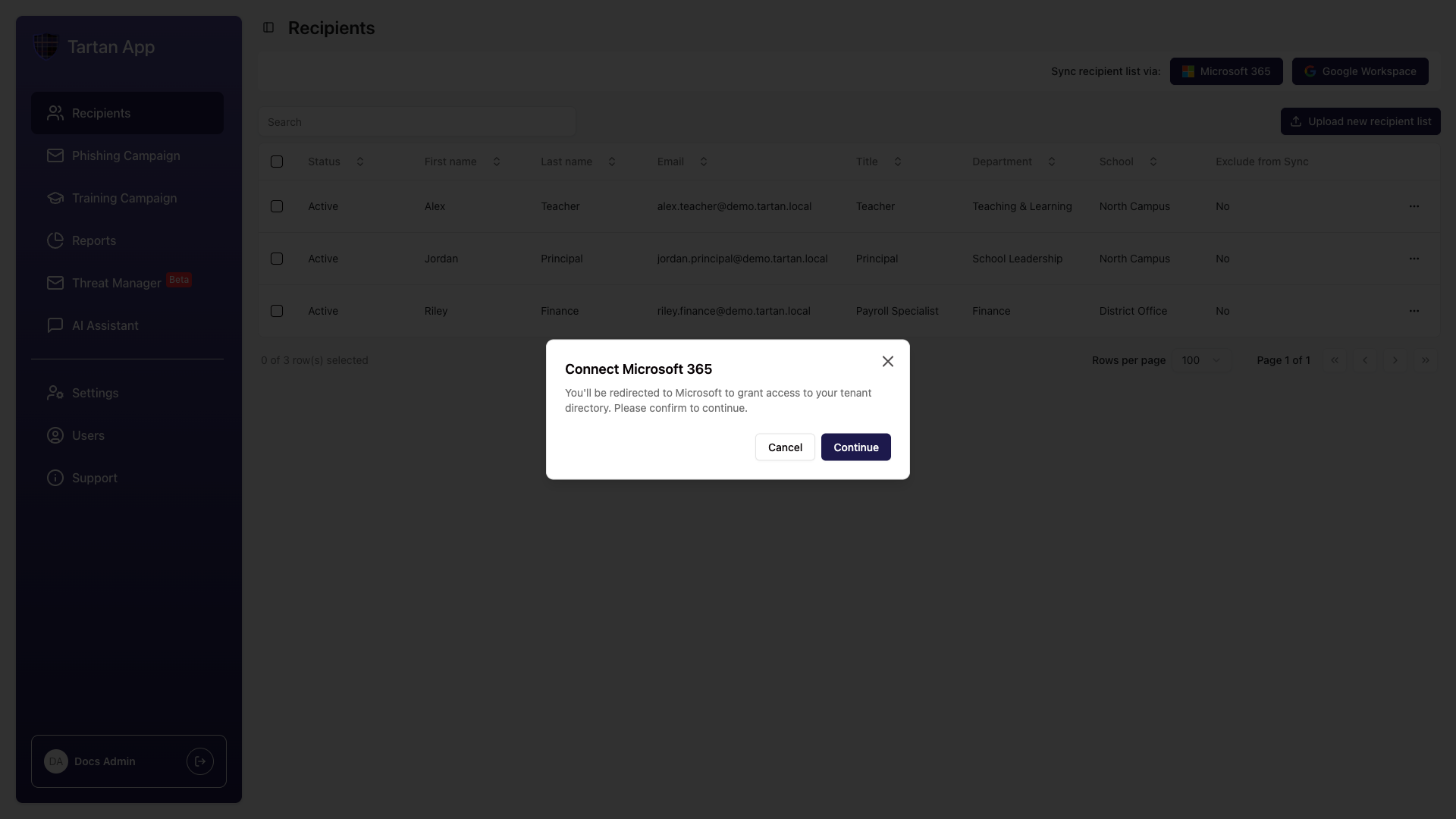
When Microsoft asks for consent, review the requested permissions and approve them only if you are ready to connect the tenant to Tartan.
Step 2: Select Microsoft 365 DMI
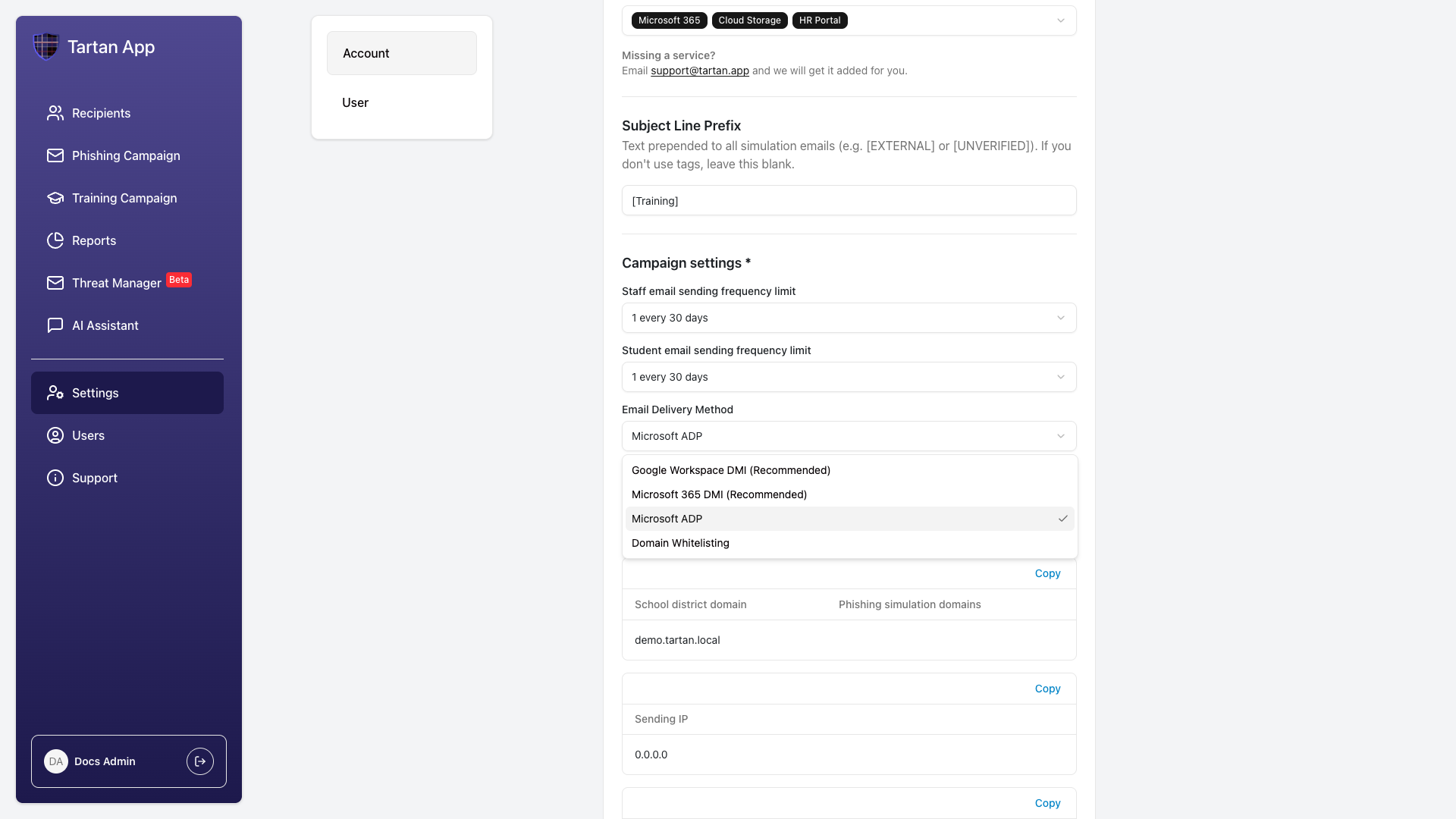
In Tartan, go to Settings and find Campaign Settings.
Open Email Delivery Method and select Microsoft 365 DMI (Recommended).
If Tartan does not yet have Microsoft 365 DMI permissions, you will see a warning with a Grant DMI Permissions button.
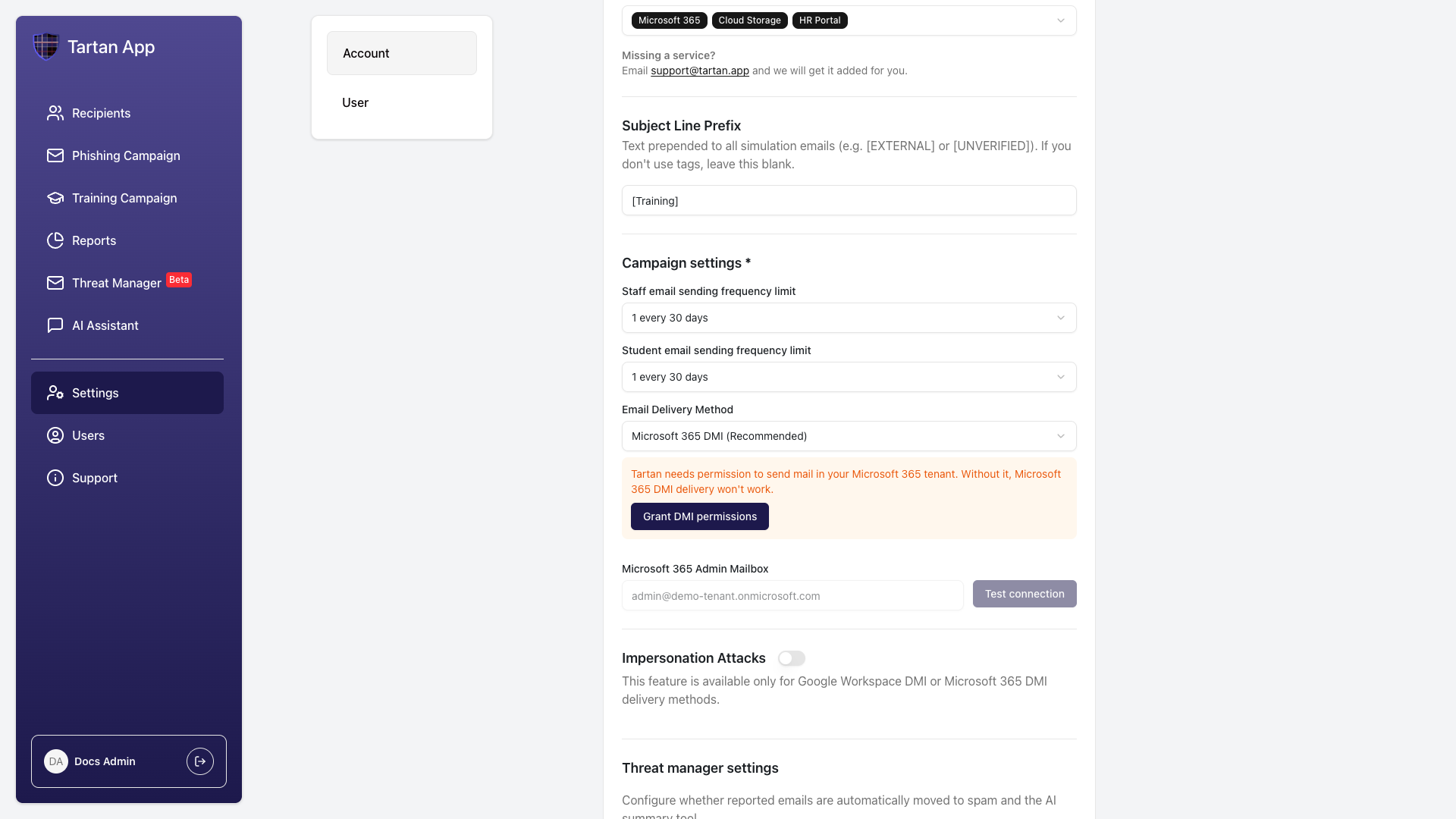
Click Grant DMI Permissions. Microsoft opens an admin-consent screen. Review and approve the DMI permission request. Microsoft 365 DMI requires Microsoft Graph permissions to send simulation mail through the tenant and verify mailbox access.
Microsoft 365 DMI Permissions
| Permission | Purpose |
|---|---|
Mail.Send | Send Tartan simulation messages through the connected Microsoft tenant. |
Mail.ReadWrite | Used by Tartan's Threat Manager to remediate reported emails, including moving, deleting, or restoring messages. |
User.Read.All | Verify the connection and resolve the admin and recipient mailboxes. |
After consent is granted, return to Tartan. The Microsoft 365 Admin Mailbox field becomes available.
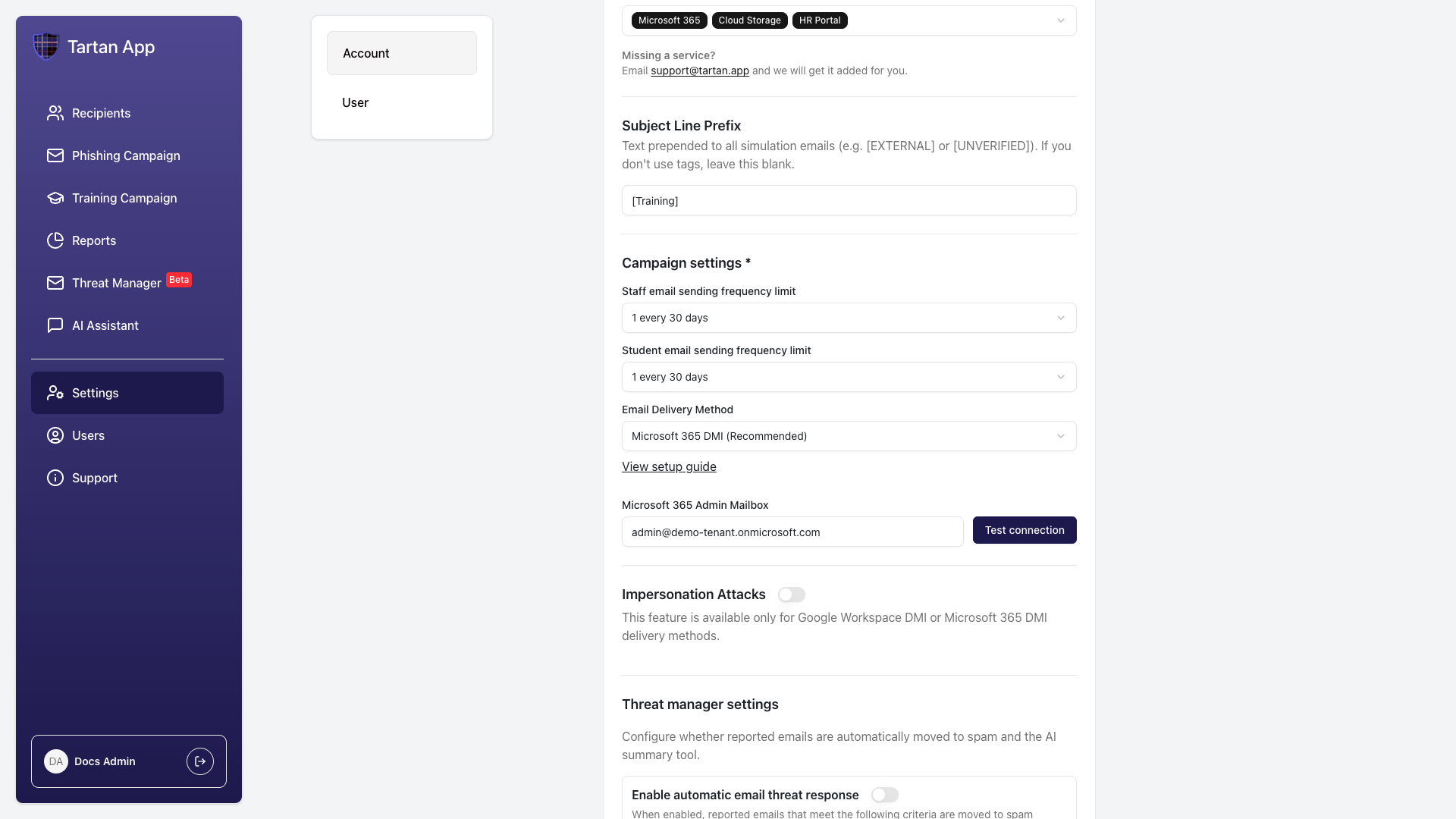
Enter the Microsoft 365 admin mailbox and click Test Connection.
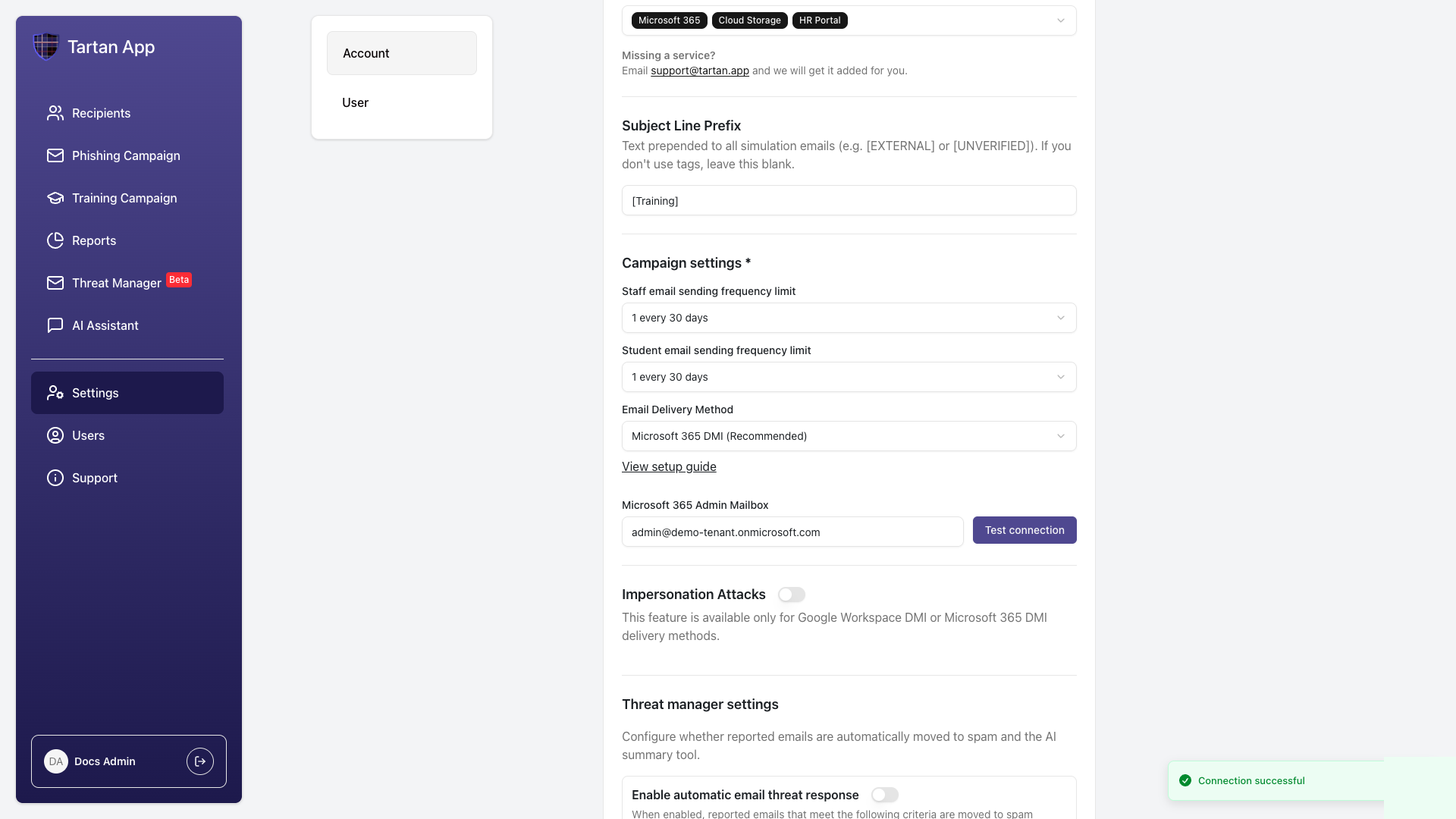
If the test succeeds, click Save.
Step 3: Verify Recipient Compatibility
Microsoft 365 DMI delivers only to compatible recipients. Before launching a campaign, confirm recipient status in Tartan and Microsoft 365.
Compatible Recipients
- Active Microsoft 365 users
- Licensed for Microsoft 365 mailbox access
- Email addresses on verified tenant domains
- Not archived in Tartan
Incompatible Recipients
- Inactive or unlicensed Microsoft 365 users
- Email addresses on external domains
- Recipients missing from the connected tenant
- Archived Tartan recipients
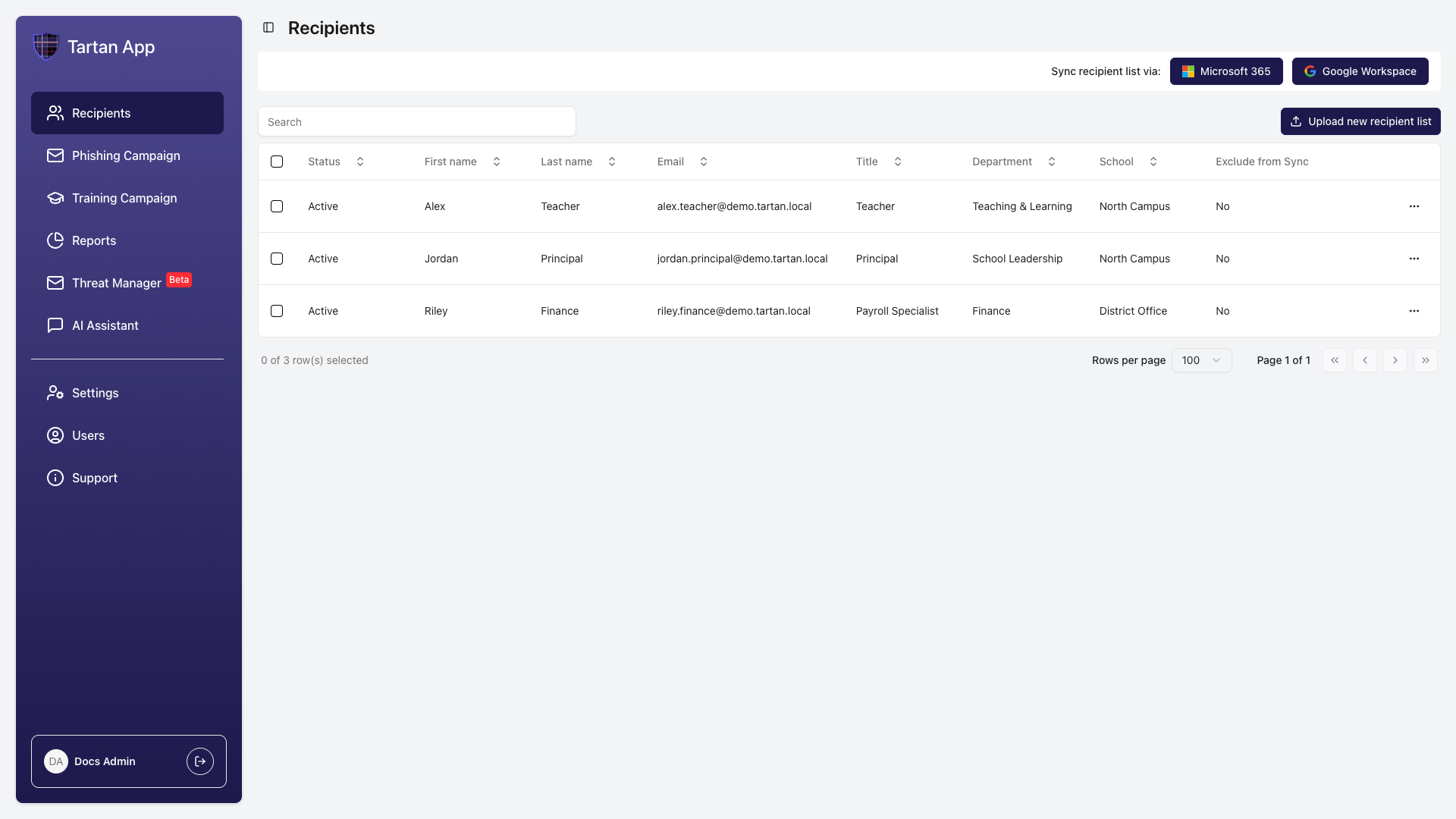
If a recipient does not exist in the tenant, is inactive, is unlicensed, uses an email domain outside the connected tenant, or is archived in Tartan, Tartan marks that recipient as not active for DMI delivery.
Important Considerations
- Microsoft 365 DMI is separate from Microsoft ADP. Microsoft ADP is the fallback delivery method when DMI is not available.
- Microsoft 365 DMI depends on the Microsoft tenant consent staying valid.
- If the Microsoft 365 DMI connection fails, Tartan retries before switching delivery back to the fallback method and notifying administrators.
- Recipient directory sync and email delivery are related but separate setup areas. Microsoft 365 Provisioning controls the recipient list; DMI controls simulation email delivery.
- Manual recipient edits are overwritten by Microsoft 365 sync unless the recipient is excluded from directory sync.
Troubleshooting
| Issue | What to Check |
|---|---|
| The admin mailbox field is disabled | Grant Microsoft 365 DMI permissions first. |
| Test connection fails | Confirm the mailbox exists in the connected tenant and that DMI consent was granted by an authorized Microsoft admin. |
| Recipients are not active for DMI | Confirm they are active, licensed Microsoft 365 users on verified tenant domains. |
| Microsoft consent fails | Reconnect with a Microsoft admin account authorized to grant tenant-wide consent. |
| DMI stops working after setup | Check whether Microsoft consent was revoked, the tenant connection expired, or the admin mailbox changed. |
Automatic Fallback Behavior
If Tartan cannot use Microsoft 365 DMI, it retries before changing delivery. Tartan first waits about 2 hours and retries. If the connection still fails, Tartan waits about 12 hours and retries again. If the connection still cannot be restored, Tartan falls back to the account's Microsoft ADP delivery path and notifies administrators. This prevents campaign delivery from staying blocked indefinitely.
Need Help?
If you run into issues, contact Tartan support at [email protected]. Include the account name, the admin mailbox you are testing, and a brief description of where setup failed.
Security Note
Microsoft Graph DMI permissions are used only for authorized phishing simulations, mailbox compatibility checks, and delivery readiness verification.