
Sync Recipients From Microsoft 365
Microsoft 365 Provisioning lets you sync recipients from Microsoft 365 into Tartan, keeping your recipient list aligned with Microsoft Entra ID.
Overview
Microsoft 365 sync is a one-way sync from Microsoft 365 to Tartan. Tartan uses the selected Microsoft 365 scope to add, update, and archive recipients.
Key Features
- Connect Tartan to Microsoft 365 through Microsoft admin consent
- Sync recipients by Groups, Departments, or Administrative Units
- Preview new, updated, archived, and errored recipients before applying changes
- Exclude individual users from sync selections
- Run a manual sync with Sync Now
- Pause and resume automatic syncing
- Review sync changes in Sync History
Important Notes
- Microsoft 365 sync runs automatically every 6 hours.
- Clicking Sync Now starts a manual sync but does not reset the automatic 6-hour schedule.
- Sync is one-way from Microsoft 365 to Tartan.
- Manual edits in Tartan are overwritten by the next sync unless a recipient is excluded from directory sync.
- Tartan supports one connected directory provider at a time. If Google Workspace provisioning is connected, connecting Microsoft 365 disconnects Google Workspace provisioning.
- If the Microsoft token expires or consent is revoked, reconnect Microsoft 365 from Tartan.
Connecting Your Microsoft 365 Account
Microsoft 365 sync uses one-way read permissions to import recipient data from Microsoft 365 into Tartan.
- Log into Tartan App as an account admin.
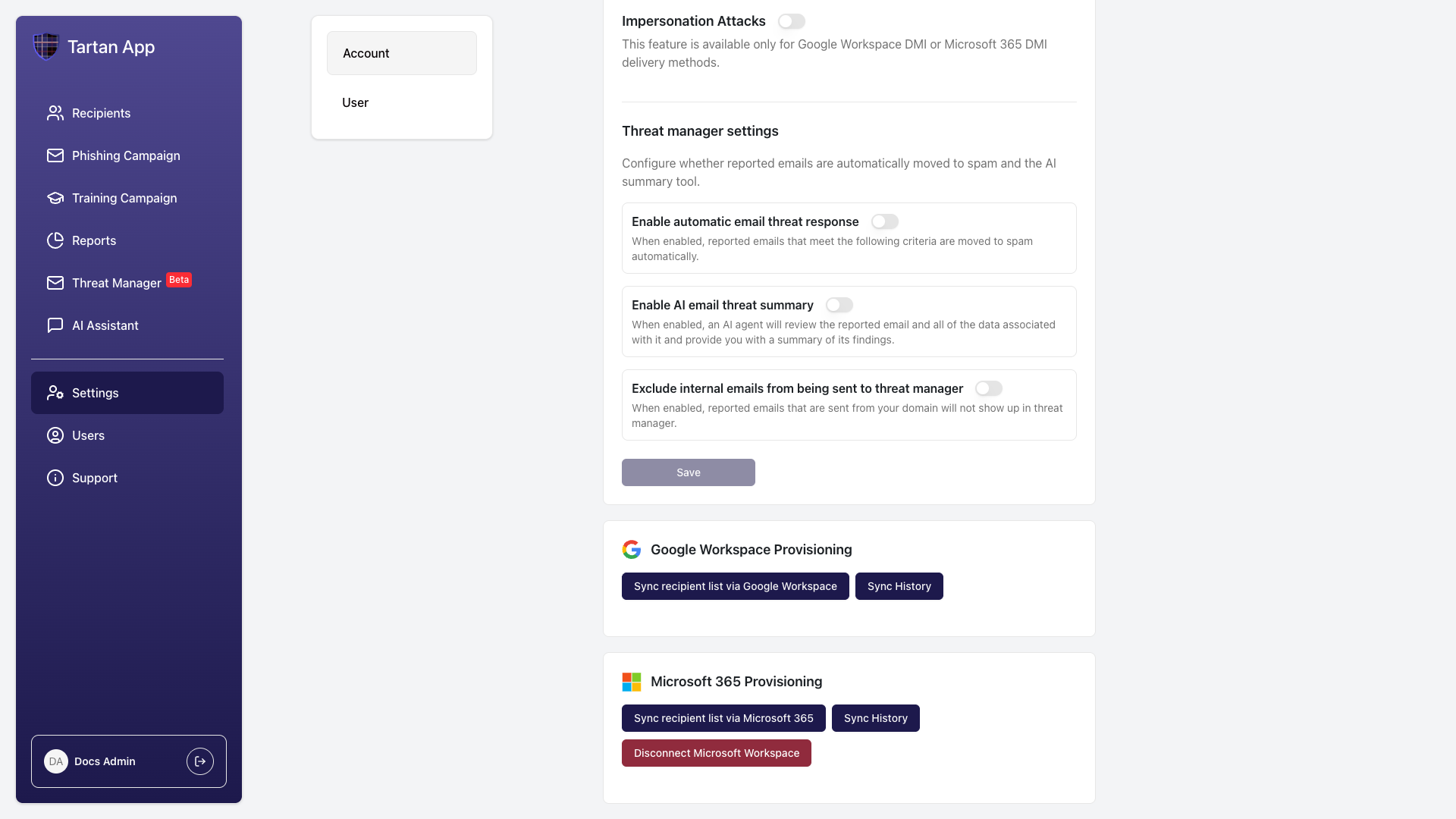
- Go to the Recipients page or Account Settings.
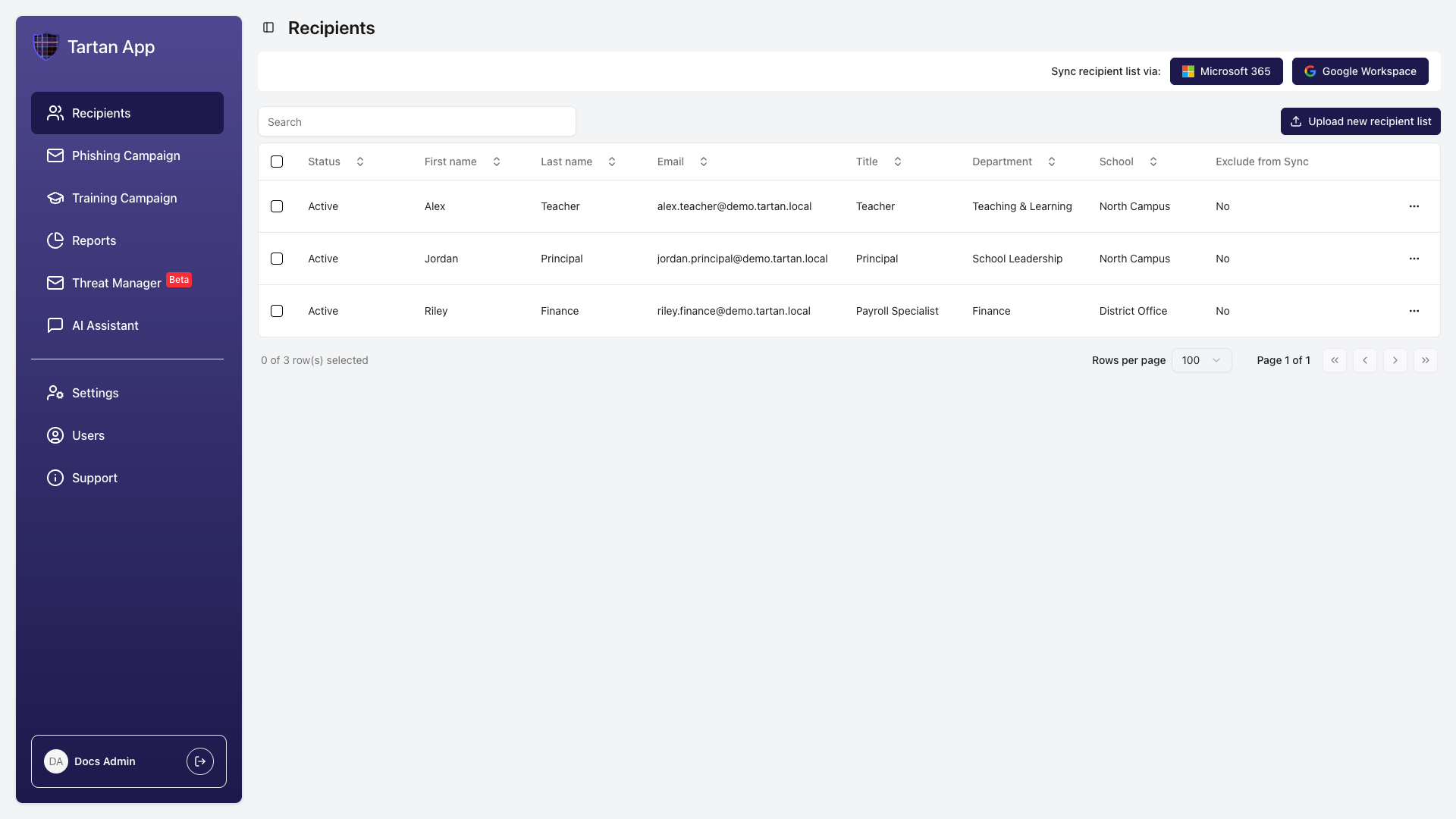
- Click Microsoft 365 under Sync Recipient List Via.
- Review the confirmation modal and click Continue when you are ready to grant Microsoft consent.
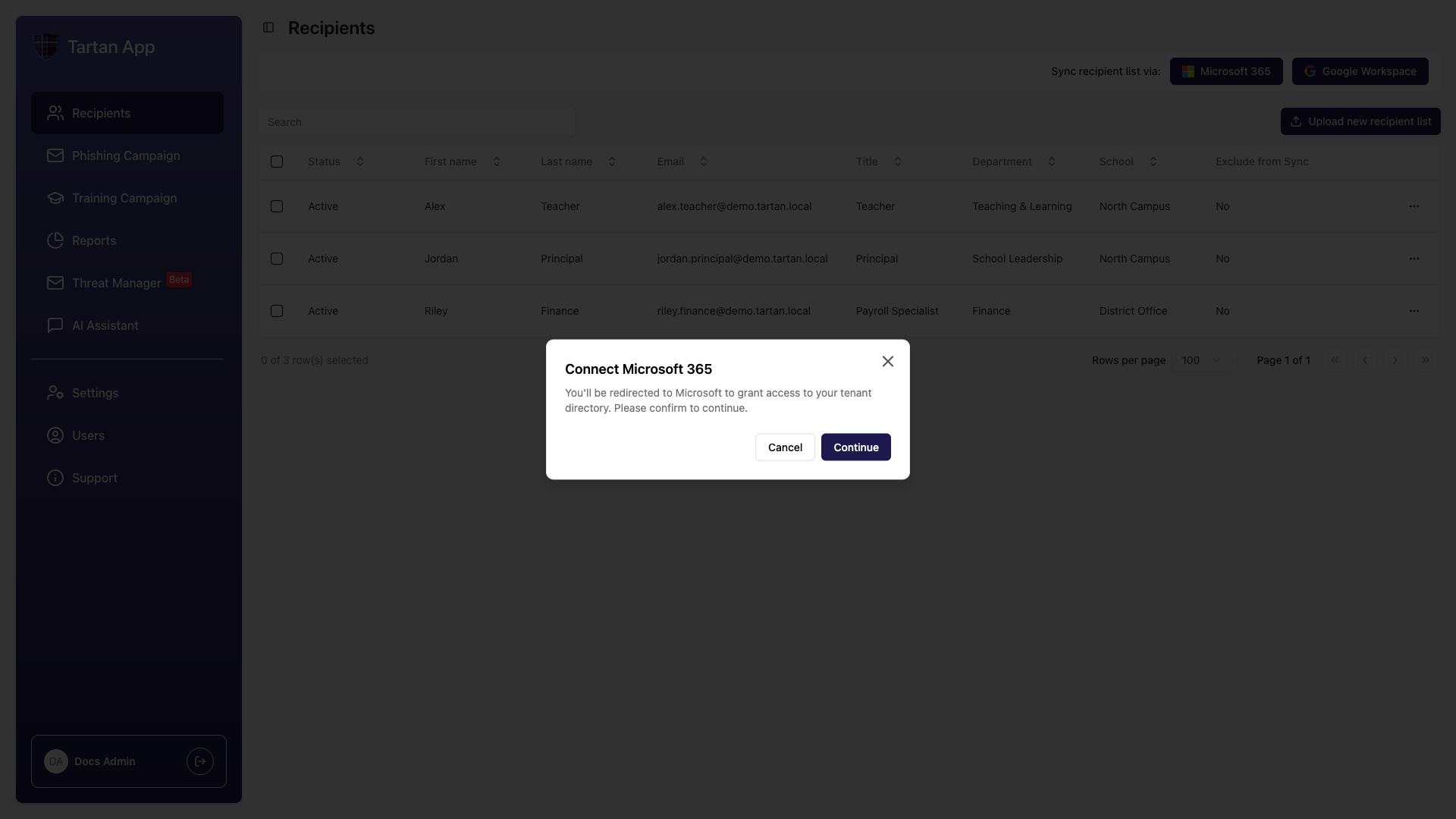
- Microsoft will ask an authorized admin to approve access to the tenant directory.
Microsoft Permissions & Scopes
Microsoft consent includes the following scopes. Tartan uses these permissions for one-way Microsoft 365 to Tartan recipient sync.
| Scope | Purpose |
|---|---|
User.Read.All | Read user profile fields needed for recipient sync. |
Group.Read.All | Read group names and group metadata for group-based selection. |
GroupMember.Read.All | Read group membership for selected group-member sync. |
Directory.Read.All | Read directory objects needed for selected users, groups, and administrative units. |
Organization.Read.All | Read organization and tenant information needed to identify the connected Microsoft 365 tenant. |
Domain.Read.All | Read verified domain information associated with the tenant. |
offline_access | Maintain the sync connection for scheduled syncs. |
openid | Complete Microsoft sign-in for the connected admin account. |
profile | Read basic profile information for the connected admin account. |
email | Read the email address for the connected admin account. |
After consent succeeds, Tartan returns you to Account Settings.
Starting Your First Sync
- Once Microsoft 365 is connected, click Sync Recipient List Via Microsoft 365.
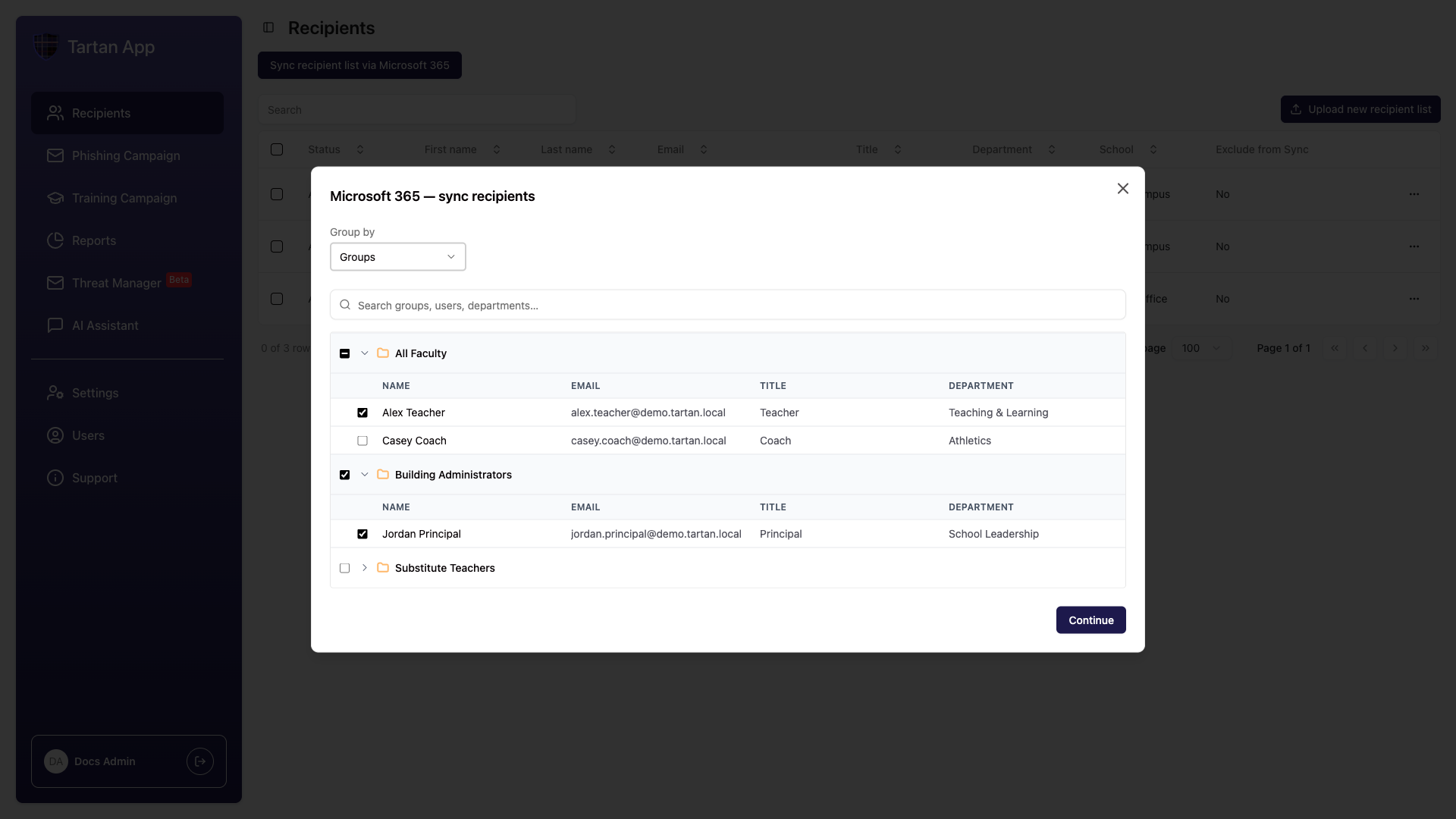
- Use Group By to choose how Tartan organizes the Microsoft 365 directory for selection.
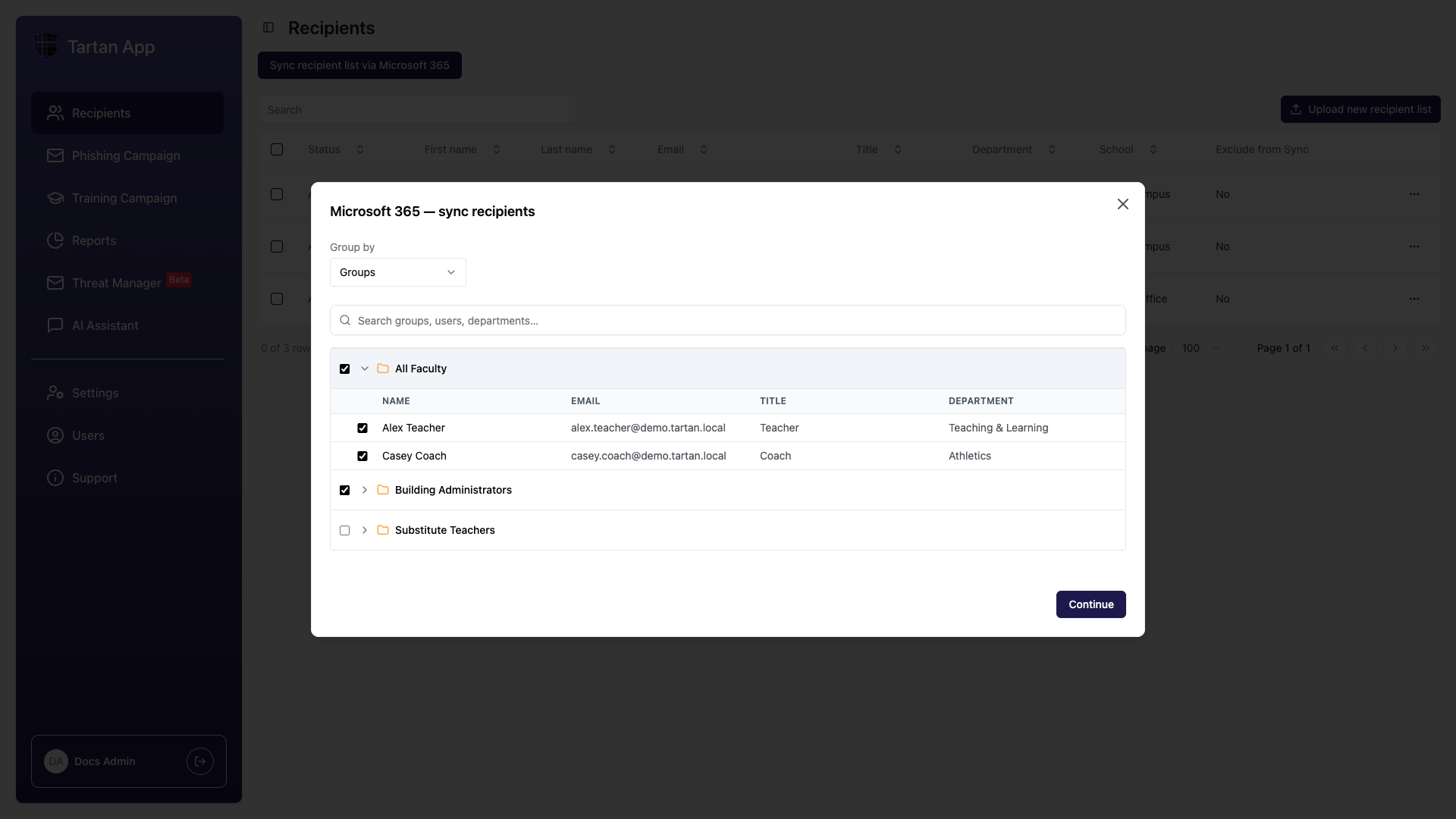
Group By Groups
Choose Groups to select Microsoft 365 groups.
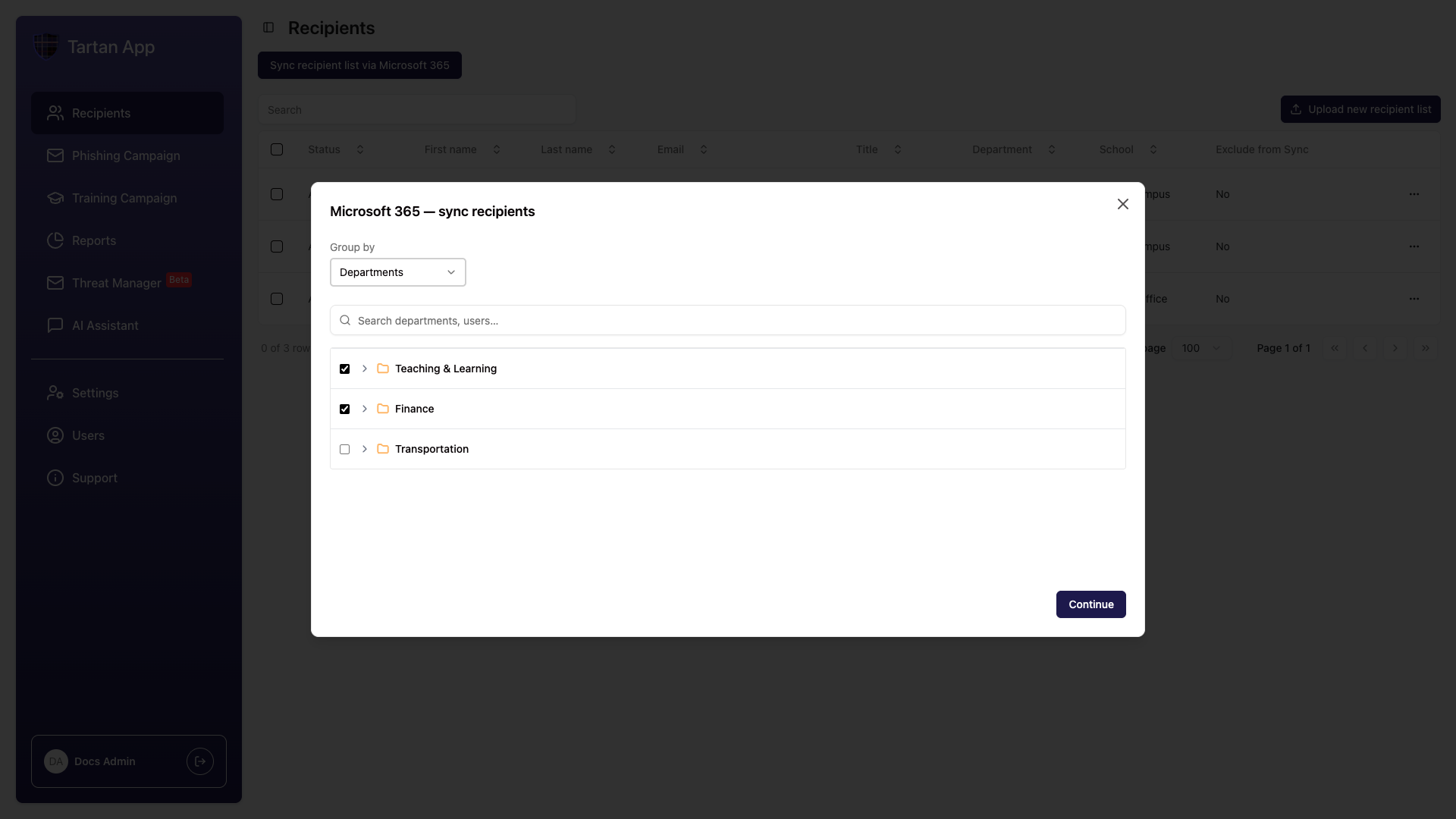
Group By Departments
Choose Departments to select users by their Microsoft 365 department value.
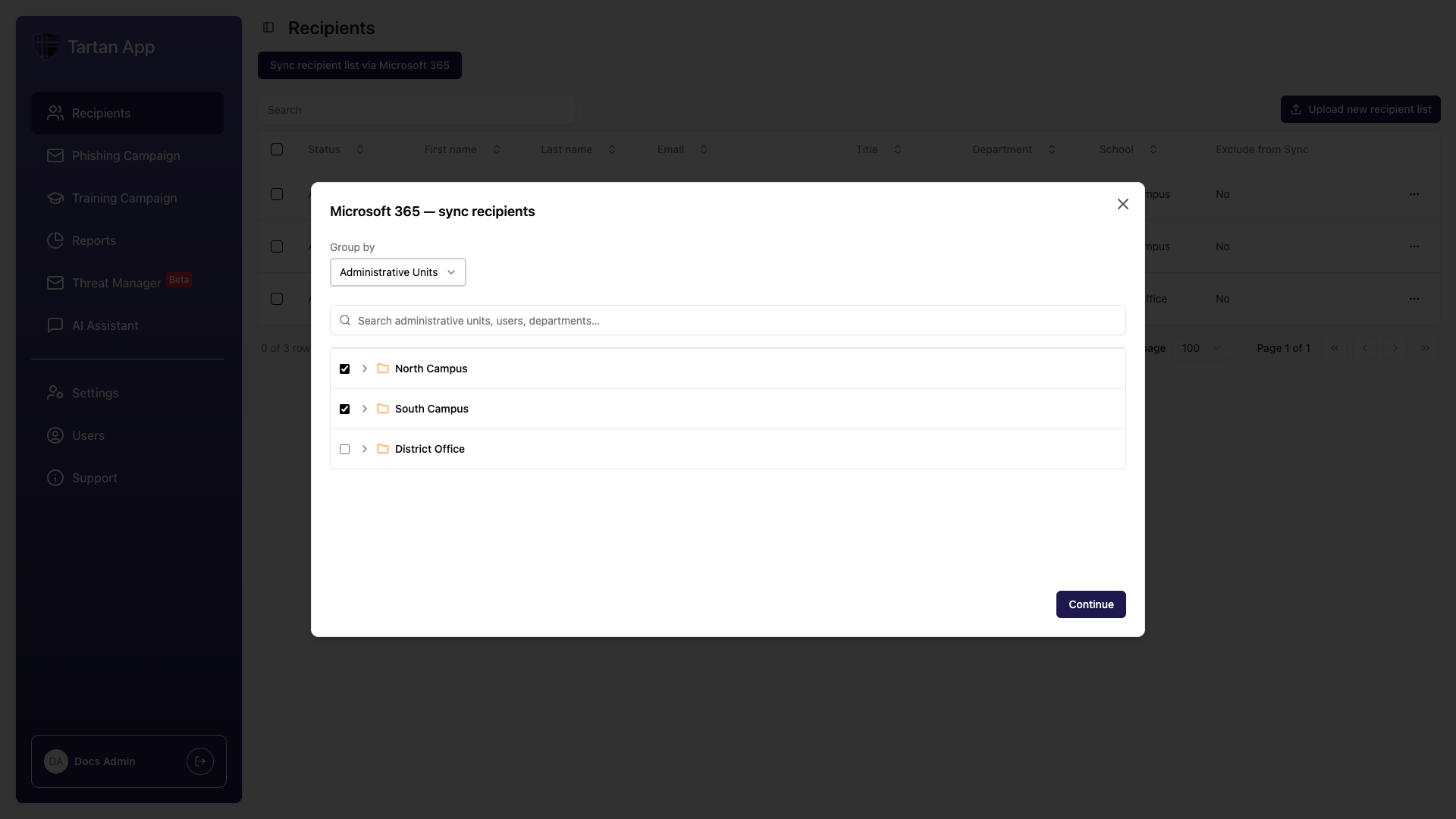
Group By Administrative Units
Choose Administrative Units to select users by Microsoft Entra administrative unit.
- Select the groups, departments, or administrative units you want to sync. Expand an item to review individual users and deselect users you do not want to sync.
Title & Department Fields
Tartan uses the selected sync source to create a contextLabel for each user. This label is used as a fallback when Microsoft 365 is missing Title or Department data.
- Group mode:
contextLabelis the selected group name. - Administrative Unit mode:
contextLabelis the selected administrative unit name. - Department mode:
contextLabelis the user's Microsoft 365 department. - If a user belongs to multiple selected groups, Tartan uses the first selected group in alphabetical order.
| Tartan Field | Microsoft 365 Source | Fallback |
|---|---|---|
| Title | jobTitle | If jobTitle is blank, use contextLabel. |
| Department | department | If department is blank or "No Department", use contextLabel. |
If either Title or Department is still blank after fallback, the user appears in preview errors and is skipped until the data or selection is fixed.
Preview Changes
- After selecting the groups, departments, or administrative units to sync, click Continue.
- Review the sync preview before applying changes.
- New & Updated Recipients - users who will be added or updated
- To Be Archived - existing synced recipients who are no longer in the selected scope
- Errors - users Tartan cannot sync until required data is fixed
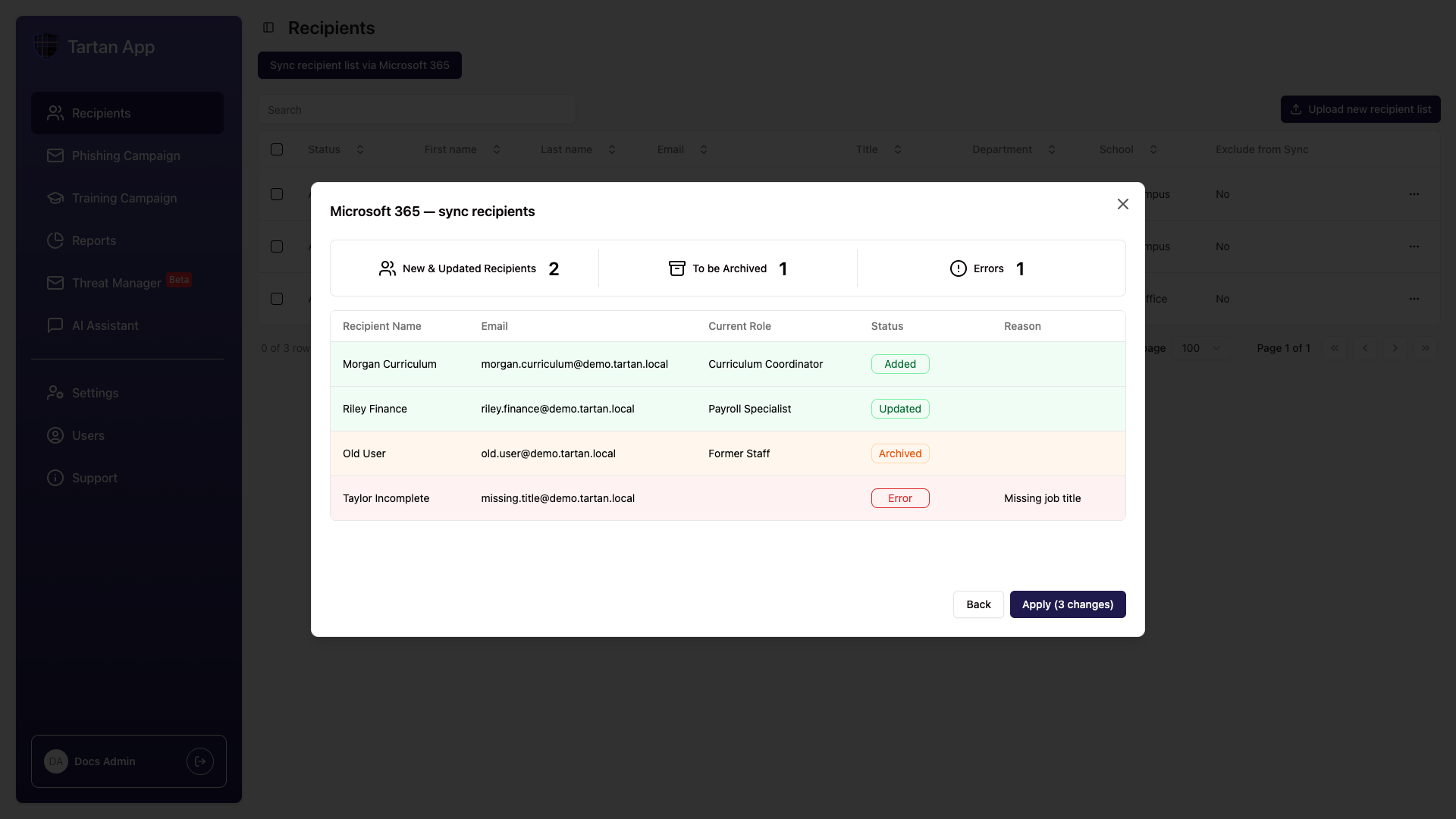
- Click Apply to update the recipient list.
Monitoring & Managing Syncs
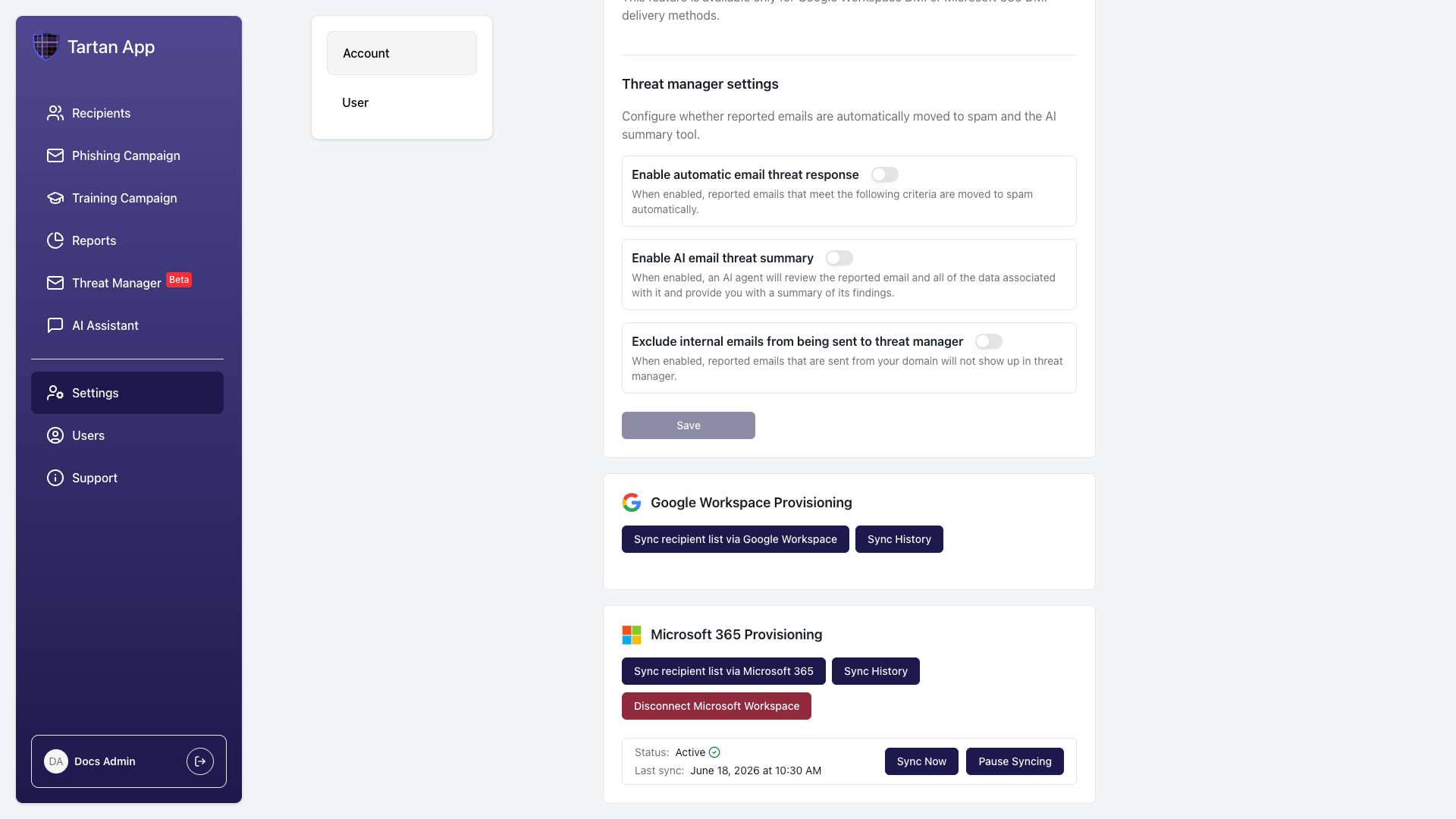
After setup, Account Settings shows the Microsoft 365 sync status, last sync time, and available actions.
Managing Your Sync
- Sync Now: Start a manual sync. This does not reset the automatic 6-hour schedule.
- Pause Syncing: Stop scheduled syncs without disconnecting Microsoft 365.
- Resume Sync: Restart scheduled syncs after pausing.
- Sync Settings: Change selected groups, departments, administrative units, or excluded users.
- Sync History: Review previous sync changes.
Changing Sync Settings
To change the selected groups, departments, administrative units, or excluded users, open Sync Recipient List Via Microsoft 365 again. Update the selection and apply the new preview. The next sync uses the latest saved selection.
Viewing Sync History
Open Sync History from the Microsoft 365 Provisioning section.
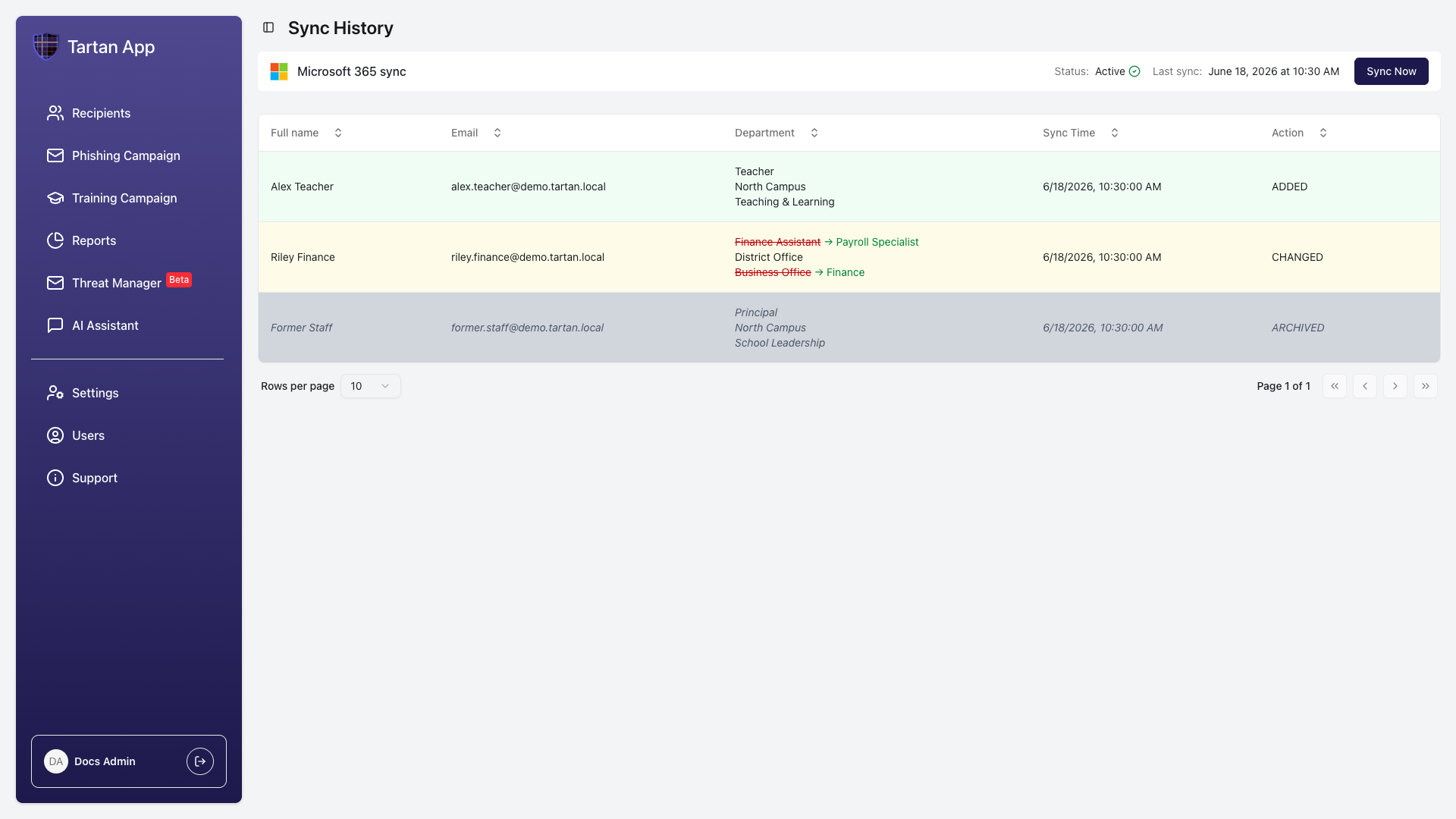
Sync History shows added, changed, and archived recipients, including before-and-after values for updated fields.
Managing Your Microsoft 365 Connection
Token Expired or Permission Issues
If the Microsoft connection expires, Tartan cannot run scheduled or manual syncs until Microsoft 365 is reconnected.
Reconnect with a Microsoft admin account authorized to grant the full consent set. If the account does not have enough permission, Tartan shows an insufficient-permissions message.
Disconnect Microsoft 365
To disconnect Microsoft 365, go to Settings and find Microsoft 365 Provisioning.
Click Disconnect Microsoft Workspace and follow the confirmation prompt. Disconnecting removes the stored Microsoft connection from Tartan. Previously synced recipients remain in Tartan, but future Microsoft 365 syncs stop until the account is reconnected.
FAQ
Will Microsoft 365 Sync Delete Recipients?
No. Tartan archives synced recipients that are no longer in the selected Microsoft 365 scope. Archived recipients are not active for future campaigns unless restored or re-synced.
What Happens if I Manually Edit Synced Recipients?
Microsoft 365 sync overwrites manual recipient edits in Tartan unless the recipient is excluded from directory sync. Use the Exclude from Sync option for recipients that directory sync does not manage.
What Happens if a User Is Missing Title or Department?
Tartan uses the selected sync context as a fallback for missing Title or Department values. If either field is still blank after fallback, the user appears in the preview as an error and is not synced until the data or selection is fixed.
Does Tartan Support More Than One Directory Provider at a Time?
No. Tartan supports one directory provider at a time for recipient sync.
Need Help?
If you run into issues, contact Tartan support at [email protected]. Include the account name, the sync grouping you selected, and a screenshot or description of any error shown in the preview.