
Sync Recipients From Google Workspace
Automatically synchronize your Google Workspace user list with Tartan App to keep your recipients up to date.
Overview
Google Workspace directory synchronization allows you to automatically sync users from Google Workspace into Tartan. This ensures your Tartan recipient list stays up-to-date without manual CSV uploads.
Key Features
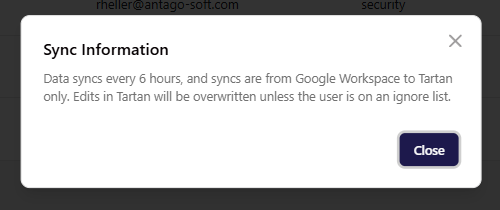
- Automatic synchronization every 6 hours
- One-way sync from Google Workspace to Tartan
- Selective import by users, departments, groups, OUs, and domains
- Manual sync available at any time
- Preview changes before applying
- Exclude recipients from being updated by the sync
Important Notes
- Syncs are one-way only (Google Workspace → Tartan)
- Manual edits in Tartan will be overwritten during sync unless the recipient is excluded from the sync
- Recipients not present in Google Workspace will be archived during the next sync
Connecting Your Google Workspace Account
Tartan only requests least-privilege read-only access to your Google Workspace data.
- Log into Tartan App.
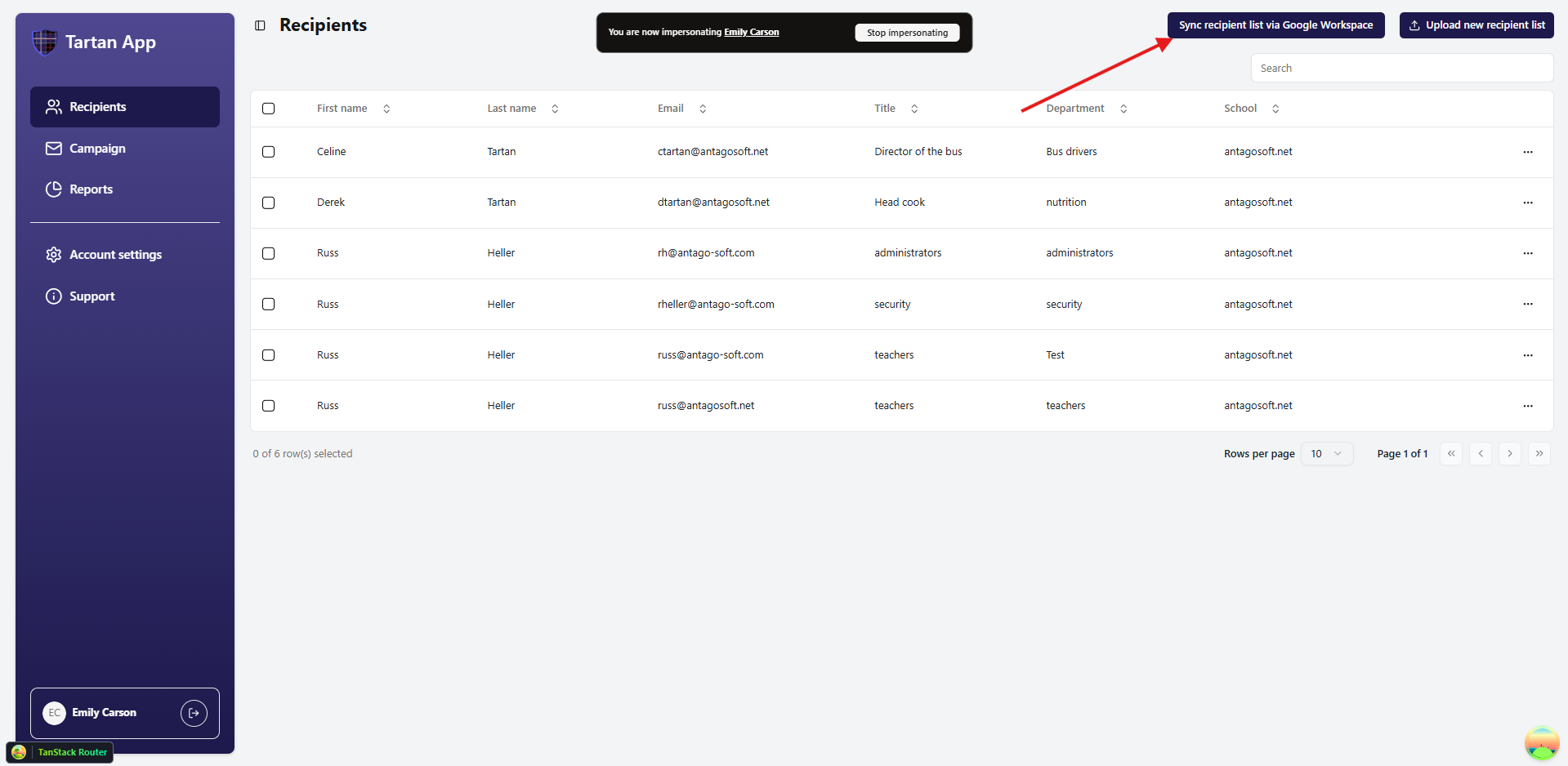
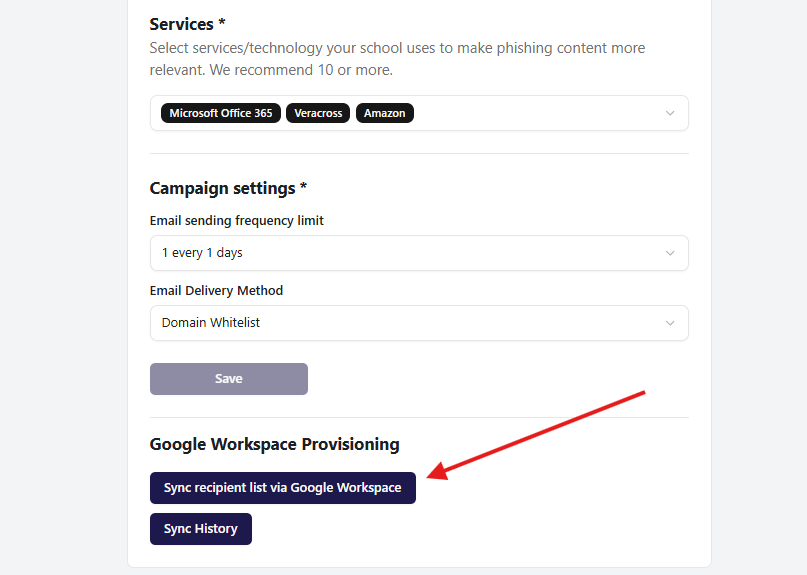
- Go to the Recipients page or Account Settings.
- Click Sync recipient list via Google Workspace.
From Recipients page:
From Account Settings page:
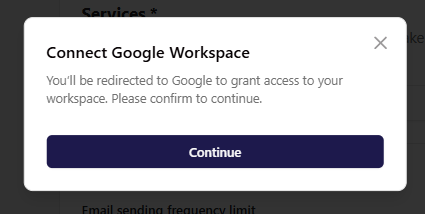
- You'll be redirected to a Google authorization screen. Select the Workspace account you want to connect.
- Grant the requested permissions.
- You'll be redirected back, where the Sync Information popup will appear. Click Close and then move to the next step.
Starting Your First Sync
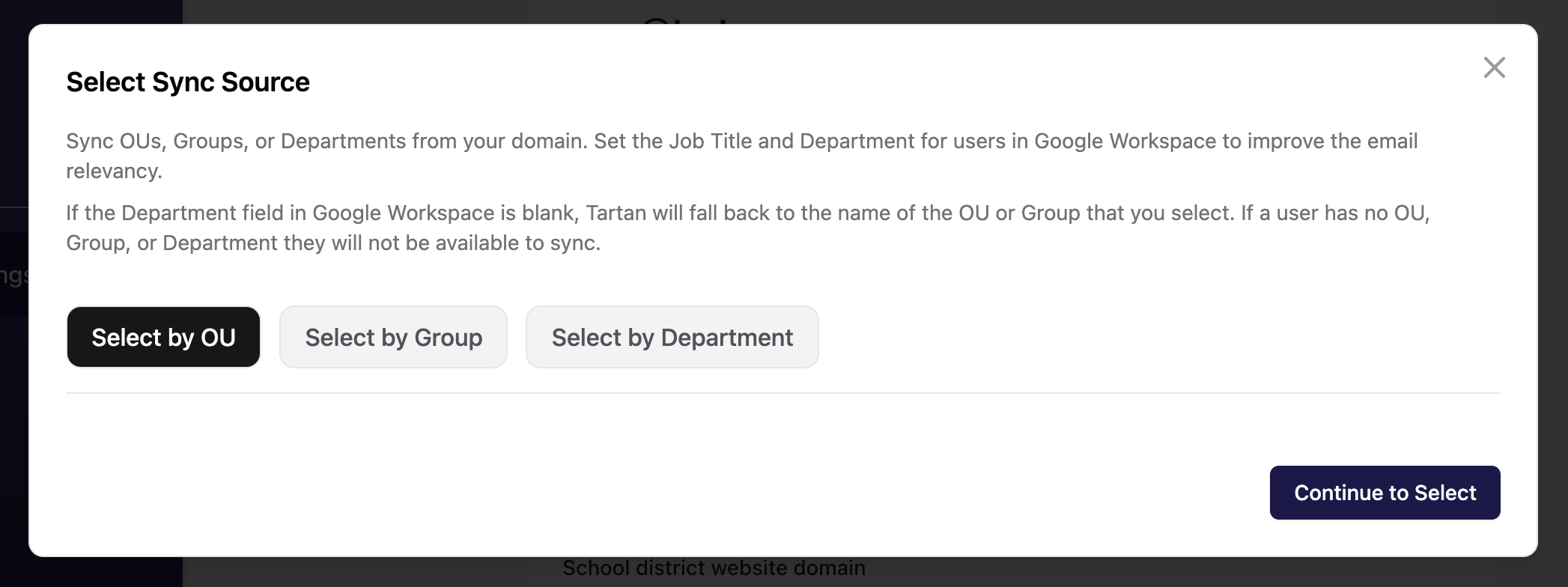
To improve Tartan's ability to generate the most relevant emails for your recipients, we strongly recommend you set the Job title and Department fields for all of the users you are syncing. If the Department field in Google Workspace is blank, Tartan will fall back to the name of the OU or Group that you select. If a user has no OU, Group, or Department they will not be available to sync.
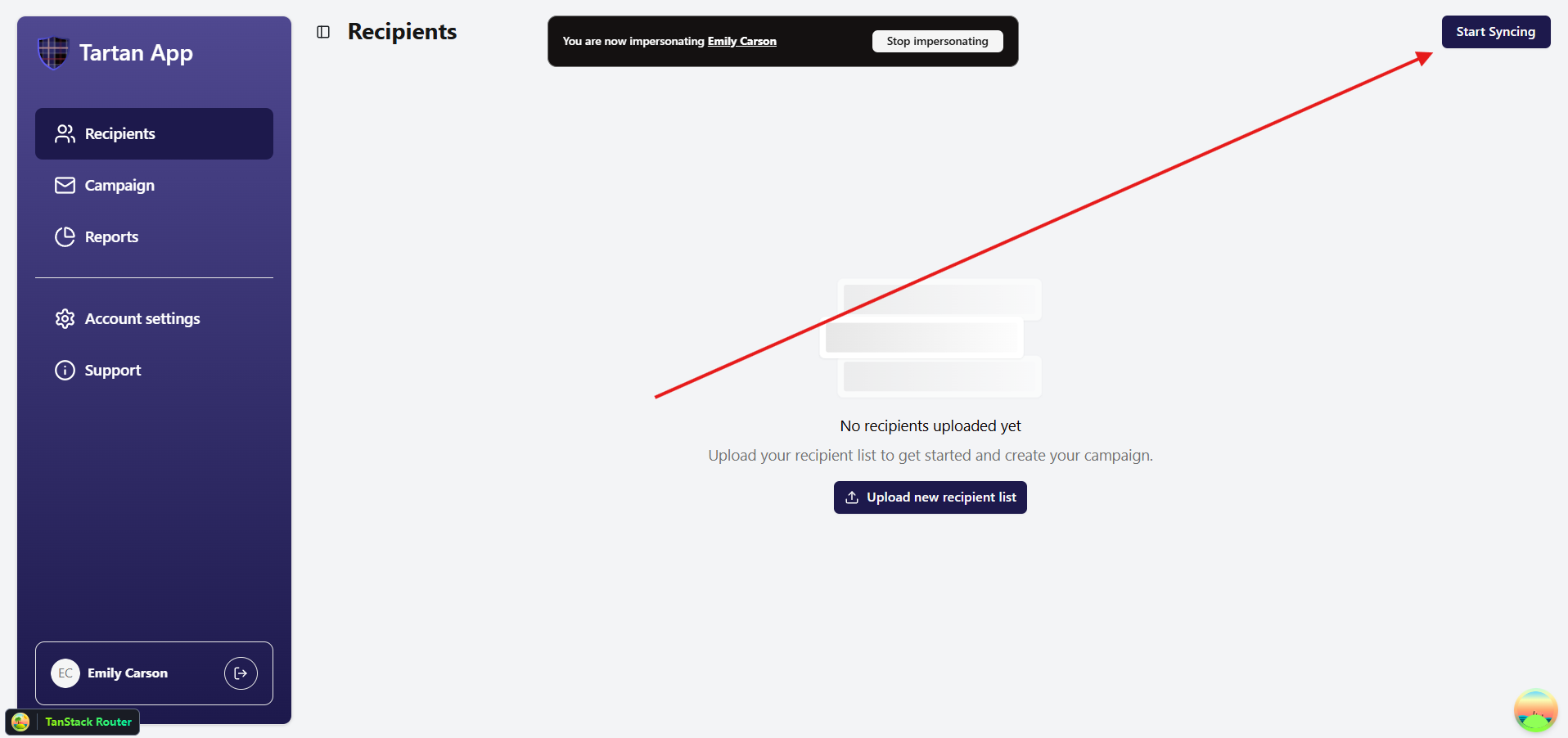
- Once connected, click Start Syncing on the Recipients page or in Account Settings.
- A popup will display your Google Workspace OUs, Groups, Departments, and Users.
- Users without a Department, Group, or OU will appear under No Department.
- You can uncheck OUs, Groups, and Departments or expand them to exclude specific users.
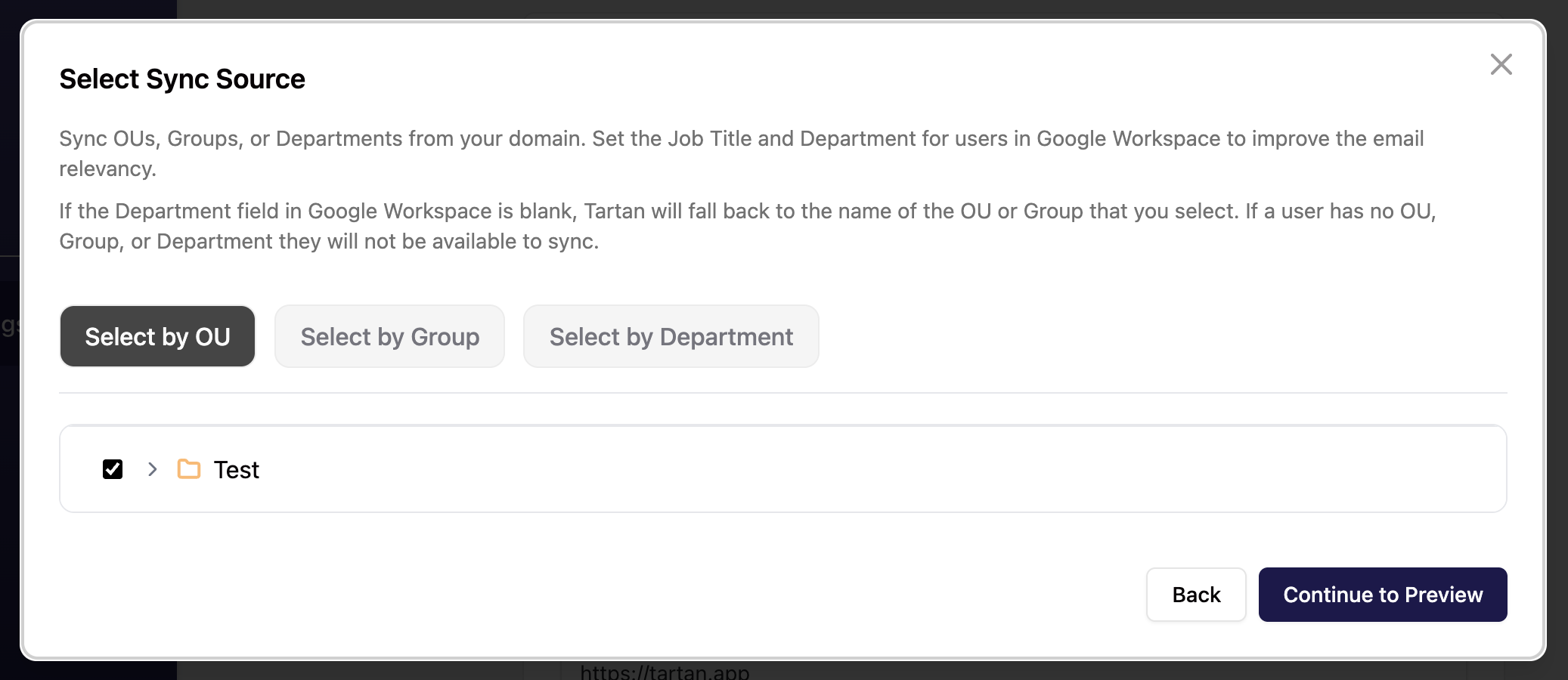
- Click Sync Preview to review changes.
- Users with errors will appear in a separate section and won't be synced.
- Users that are not in your Google Workspace directory will be archived.
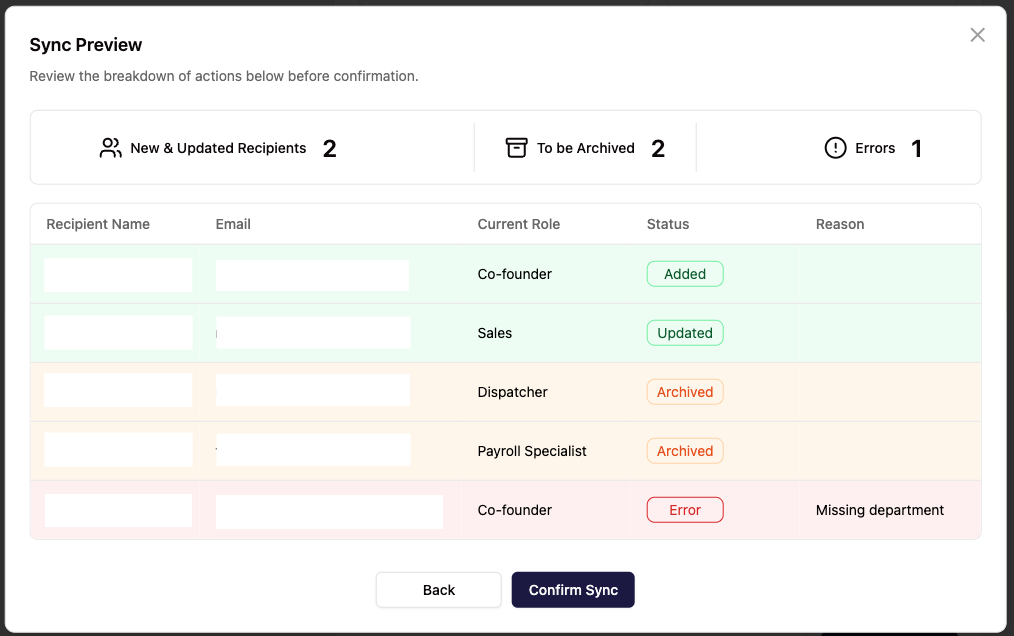
- Confirm to begin the sync.
- The initial sync will begin immediately and may take several minutes depending on the size of your directory.
Monitoring & Managing Syncs
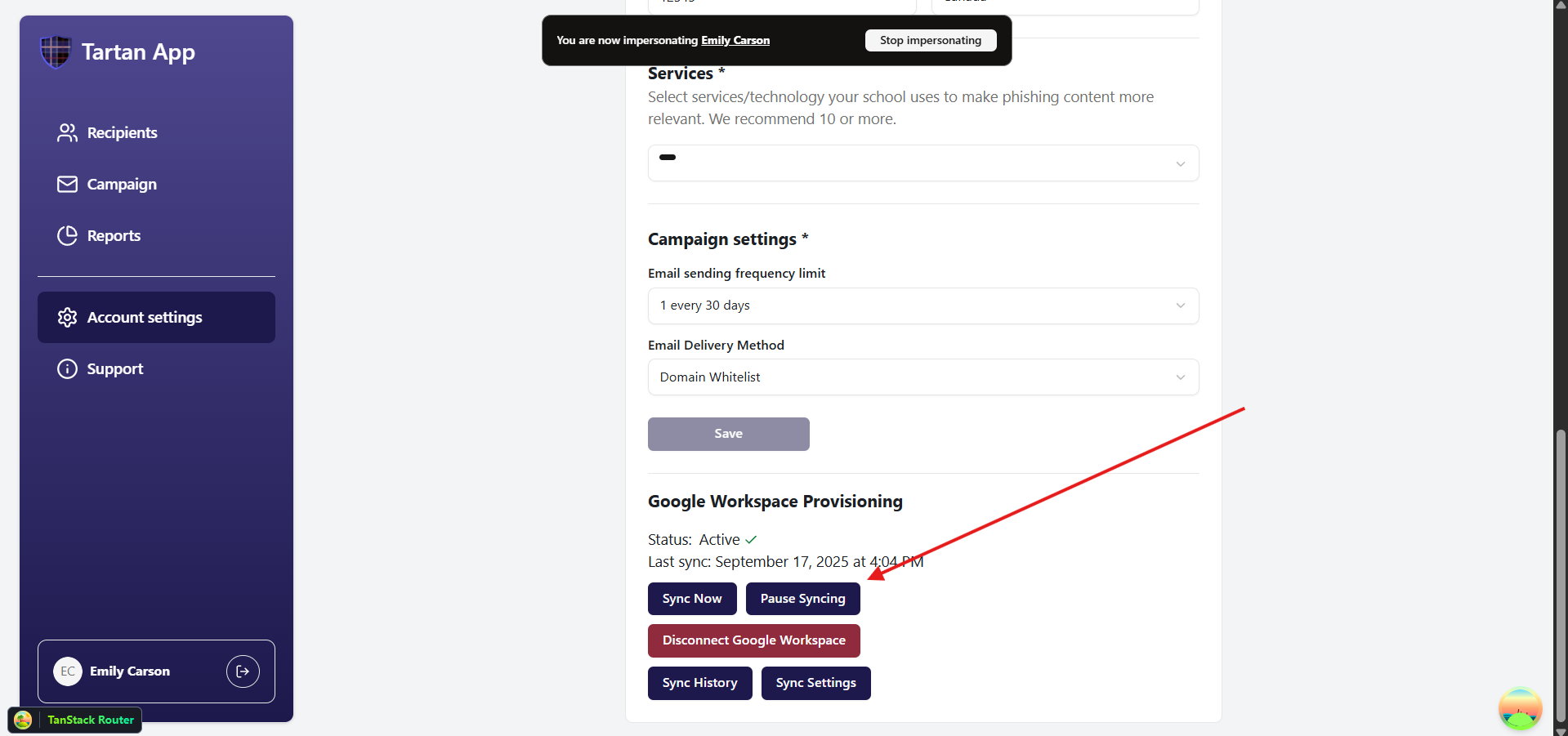
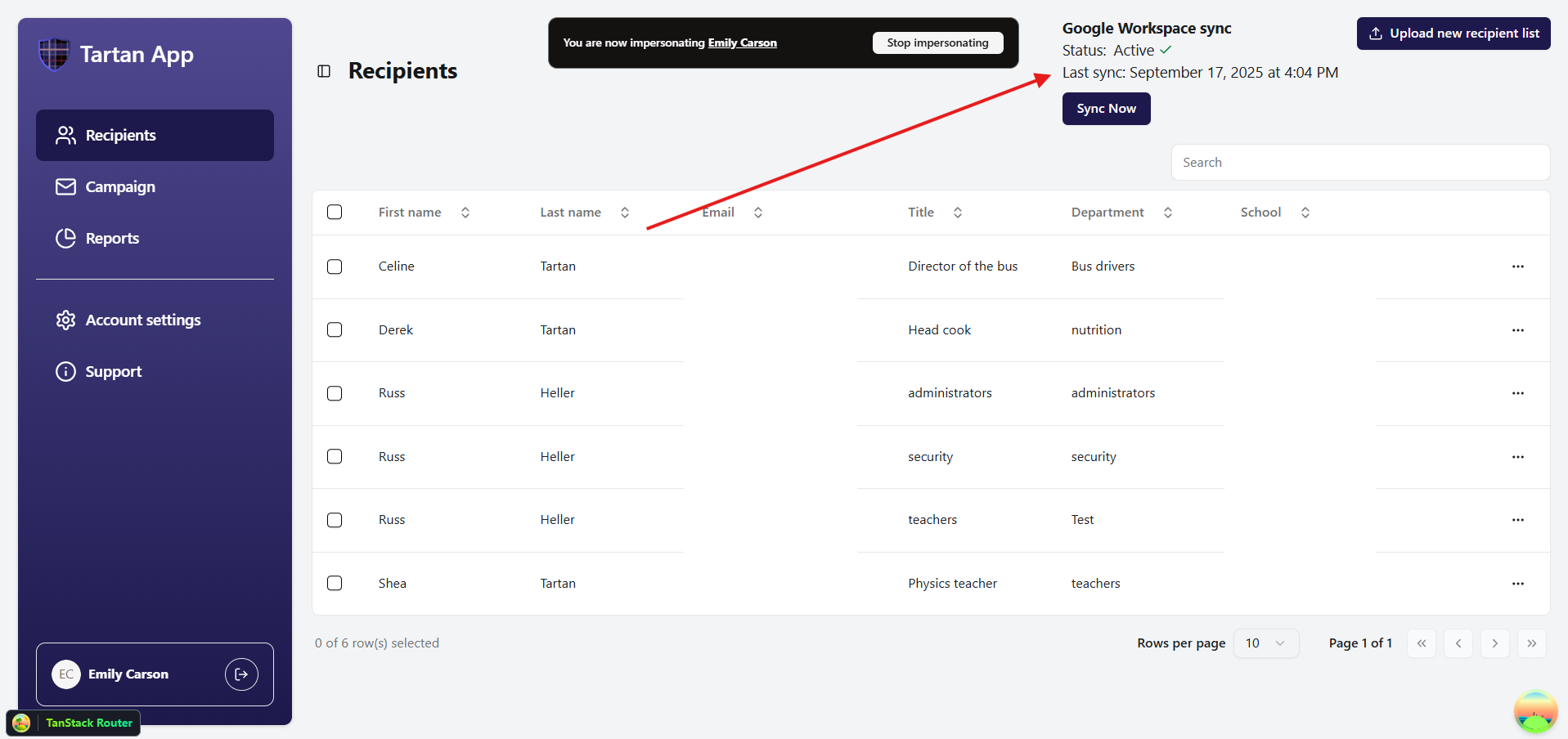
Once synchronization is enabled, the Sync recipient list via Google Workspace button will be replaced with a Google Workspace sync status block on the Recipients page and in Account Settings. The status block will show:
- Status: Active, Paused, Error
- Last sync: Date and time of the most recent sync
- Sync now button: Manually trigger an immediate sync
Managing Your Sync
- Manual Sync: Click Sync now to immediately sync your recipient list
- Pause Sync: Click Pause sync to temporarily stop automatic synchronization
- Resume Sync: Click Resume sync to restart automatic synchronization
Account Settings view:
Recipients page view:
Changing Sync Settings
You can adjust which groups or users are ignored:
- Go to Account Settings > Google Workspace Provisioning.
- Click Sync Settings.
- Follow the same steps as during your first sync to update exclusions.
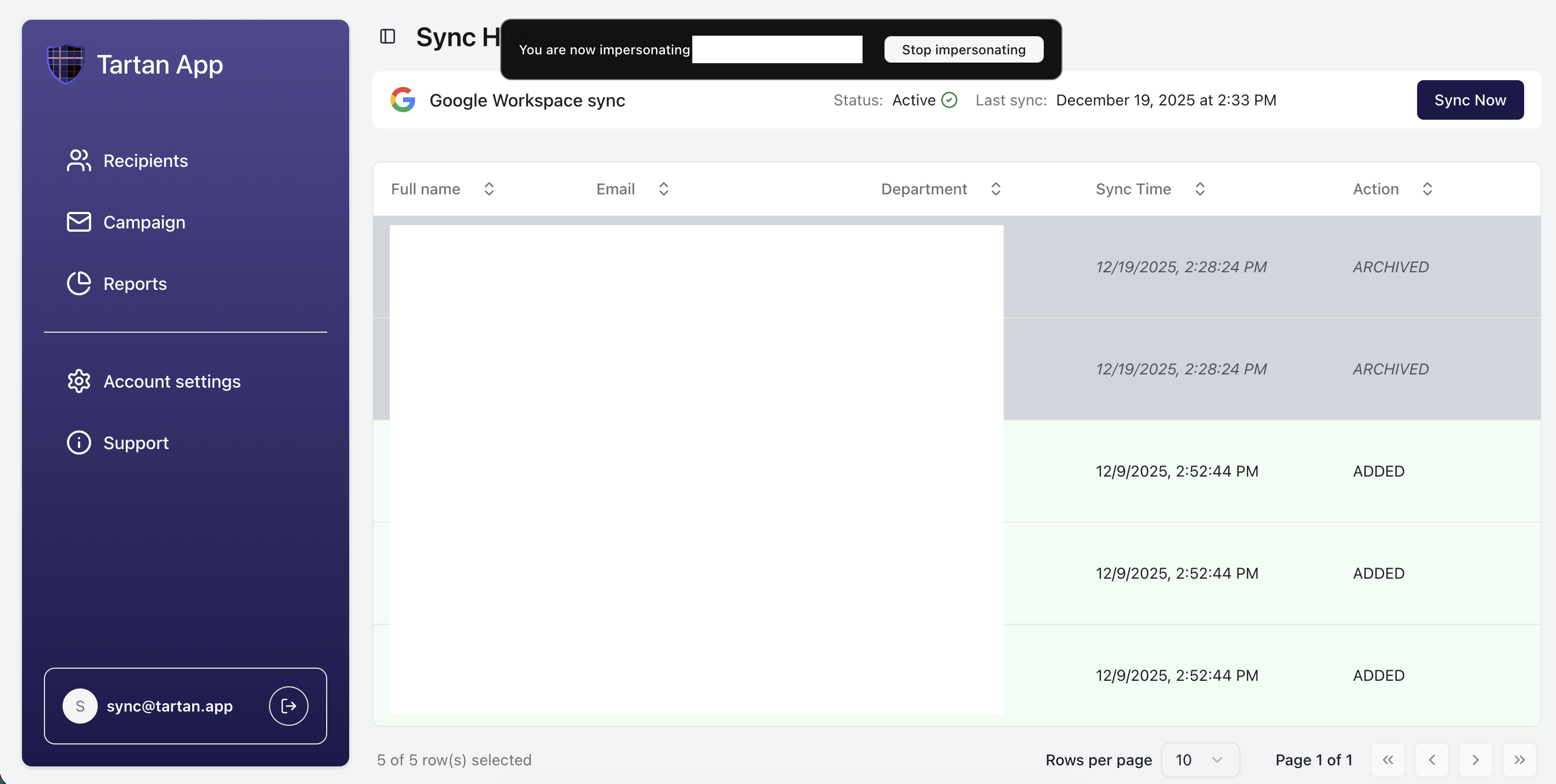
Viewing Sync History
- Go to Account Settings > Google Workspace Provisioning.
- Click Sync History.
- You'll see a log of:
- Added recipients
- Archived recipients
- All changes, with side-by-side comparisons
Using CSV Import with Google Workspace Sync
You can still import recipients via CSV even when Google Workspace sync is active.
Protecting Recipients from Sync Overwrites
To prevent specific recipients from being managed by Google Workspace sync you have two options:
Option 1: Use the CSV Import
- Add an exclude_from_directory_sync column to your CSV file
- Set the value to true for recipients you want to exclude from being overwritten
- Import the CSV as usual
Recipients with exclude_from_directory_sync = true will not be modified or removed during Google Workspace synchronization.
Default behavior: All recipients have exclude_from_directory_sync = false by default.
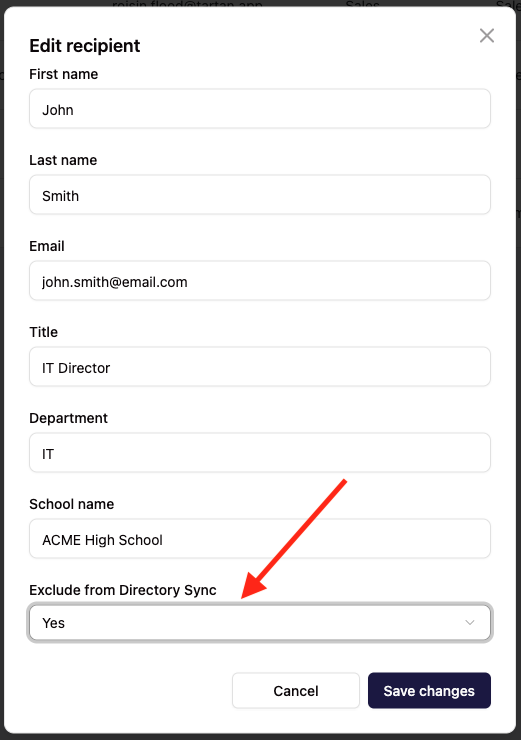
Option 2: Use the Edit Recipients User Interface
- Select the recipient you'd like to exclude from the Google Workspace sync
- Set Exclude from Directory Sync to Yes
- Click Save changes
Managing Google Workspace Connection
You can manage your Google Workspace connection from Account Settings under the Google Workspace Provisioning section (located below Campaign Settings).
Disconnect Google Workspace
- Go to Account Settings
- Navigate to Google Workspace Provisioning
- Click Disconnect
- Confirm the disconnection
Once disconnected, automatic synchronization will stop, but your existing recipient data will remain in Tartan.
Reauthorize Google Workspace
You may need to reauthorize Google Workspace if:
- Your authentication token expires
- Required scopes change
- Your domain is removed or renamed
To reauthorize:
- Go to Account Settings
- Navigate to Google Workspace Provisioning
- Click Reauthorize
- Follow the OAuth authentication flow again
When reauthorization is needed:
- A notification will appear in the Tartan application
- You'll receive an email indicating that syncs are paused
- The application continues to run with data from the last successful sync
- No new recipients are imported until reauthorization is complete
Frequently Asked Questions
How often does synchronization occur?
Automatic synchronization happens every 6 hours. You can also manually trigger a sync at any time by clicking the Sync now button.
What happens if I manually edit a recipient in Tartan?
Manual edits will be overwritten during the next sync unless you add the recipient to the ignore list. To protect a recipient from sync overwrites, import them via CSV with exclude_from_directory_sync = true in the ignore column.
What happens if I delete a recipient from Google Workspace?
The recipient will be archived in Tartan during the next sync. Their historical data remains in reports, but they will no longer receive campaign emails.
What happens if I manually delete a recipient from Tartan?
If the recipient is still in your Google Workspace sync scope, they will be re-added during the next synchronization. To permanently remove them, either exclude them from your sync filters or delete them from Google Workspace.
What if a recipient's Title and Department, Group, or OU fields are empty in Google Workspace?
If the Department field in Google Workspace is blank, Tartan will fall back to the name of the OU or Group that you select. If a user has no OU, Group, or Department they will not be available to sync.
Will suspended or archived users be synced?
No. Suspended and archived (disabled) users in Google Workspace are automatically excluded from synchronization.
My sync isn't working. What should I check?
- Verify that you've granted all required permissions (users, groups, group members, domains, organization units)
- Check that users are included in your selected domains, OUs, departments, or groups
- Wait 6 hours for the next automatic sync, or click Sync now to trigger a manual sync
- If issues persist, try disconnecting and reconnecting your Google Workspace account
What happens if my domain is renamed or removed?
If your domain is removed or renamed in Google Workspace:
- Syncs will be paused automatically
- You'll receive an in-app notification and email alert
- The application continues running with data from the last successful sync
- No new recipients are imported until you reconfigure the connection
Can I see what changed in the last sync?
Yes. The Google Workspace sync history page displays a summary of the previous sync, including how many recipients were added, updated, and archived.
Does Tartan sync data back to Google Workspace?
No. Synchronization is one-way only, from Google Workspace to Tartan. Changes made in Tartan are not synced back to Google Workspace.
Can I use both CSV import and Google Workspace sync?
Yes. You can import CSV files at any time, even with Google Workspace sync enabled. Set the exclude_from_directory_sync column to true in your CSV to protect specific recipients from being overwritten by sync.
What happens to my campaigns when new recipients are added during sync?
New recipients are automatically enrolled in active campaigns without stopping or restarting them. The campaigns continue running seamlessly.
What happens to campaigns when a recipient's information is updated?
When a recipient's information is updated during sync, the campaign is paused for that recipient. New email content is generated based on the updated information, and then the campaign is resumed.
What happens to campaigns when recipients are removed during sync?
When recipients are removed, their historical data remains in your reports, but they no longer receive campaign emails. Campaigns continue running for other recipients without any interruption.
Need Help?
If you encounter issues or need assistance with Google Workspace provisioning:
- Contact our support team through this support form
- Include details about error messages or specific issues you're experiencing
Need additional help with Google Workspace provisioning?
Contact Support